GitHub Actions is an automation and workflow tool provided by GitHub. It allows developers to automate tasks and define workflows using YAML files. Workflows are triggered by events such as code pushes or pull requests and can include a series of actions. Actions are reusable tasks that can be combined to create workflows. GitHub Actions is commonly used for continuous integration/continuous deployment (CI/CD) pipelines.
Traceable integrates with GitHub Actions by running security scans. Traceable helps you identify vulnerabilities in the early stages of SDLC, giving you more time and context to prioritize vulnerability mitigation and build secure APIs. The topic explains how to configure and use Traceable xAST CI/CD integration and how to run the scan during the build step.
What you will learn from this topic
By the end of this topic, you will be able to understand:
The available Traceable AST actions, and their usage.
The inputs for the scan, queue-scan, report, and gate GitHub Actions.
Before you begin
Make a note of the following before integrating GitHub Actions with Traceable:
Make sure that you have an active account and repository on GitHub.
Make sure you have a basic understanding of GitHub Actions and workflows. For information, see GitHub Actions documentation.
Make sure you obtain the platform access token that the CLI uses to authenticate. For more information, see Public APIs.
Make sure you create the scan that the workflow runs, and note its name or ID. For more information, see Creating a Scan.
Make sure you have updated the Traceable CLI version to 2.8.0 or later installed in your CI system (here, GitHub). For more information, see CLI Pre-checks and Installation.
Note
To upgrade the Traceable CLI to the latest version, re-run the installation script. The script will upgrade the existing installation in place without removing configuration or credentials. For more information, see CLI Pre-checks and Installation.
Integration
Integrate Traceable xAST into your GitHub workflows using a GitHub Action. The integration provides inputs and outputs, along with example workflows to help you get started. For more information, see GitHub Integration.
Available GitHub Actions
All the GitHub Actions by Traceable are currently available in GitHub repository. Each Traceable ast-actionwraps a single Traceable CLI command, so you build a workflow by adding the steps that your pipeline requires. The following table describes the available actions:
Action | CLI command | Purpose |
|---|---|---|
|
| Runs a local scan. |
|
| Queues a scan on remote runners. |
|
| Generates and publishes a report. |
|
| Passes or fails the pipeline. |
Note
Use the
scanaction when the GitHub runner can reach the target APIs directly, and thequeue-scanaction when the target is reachable only from inside your own network (runner is deployed remotely). For more information on the commands behind these actions, see Queue scan to a remote runner.
Understand the inputs
Each GitHub Action has its own set of inputs that either select a scan or a CLI version to use, or control what the action writes back to the workflow. The following sections describe the inputs for each action:
Inputs for the scan action — The
scanaction runs a scan on the GitHub runner.Inputs for the queue-scan action — The
queue-scanaction dispatches a scan to a remote runner.Inputs for the report action — The
reportaction generates and publishes a report.Inputs for the gate action — The
gateaction passes or fails a pipeline.
Inputs for the scan action
The scan action runs a scan on the GitHub runner. The following table describes its inputs:
Input | Description | Required | Default |
|---|---|---|---|
| The name of the scan. | No |
|
| The scan configuration ID. | No |
|
| The platform access token. | Yes | — |
| The platform URL. | Yes | — |
| The Traceable CLI version to be used. | No |
|
| Freeform CLI flags that are appended to the command. | No |
|
| Writes the scan output to the GitHub job summary. | No |
|
Note
You must provide at least one of
scan_nameorscan_id.
Inputs for the queue-scan action
The queue-scan action dispatches the scan to remote runners. Its inputs mirror those of the scan action, with additional inputs for runner selection and wait behavior, as described in the following table:
Input | Description | Required | Default |
|---|---|---|---|
| The name of the scan. | No |
|
| The scan configuration ID. | No |
|
| The platform access token. | Yes | — |
| The platform URL. | Yes | — |
| The Traceable CLI version to be used. | No |
|
| A comma-separated list of runner IDs. | No |
|
| Waits for the scan to complete. | No |
|
| The maximum wait time in minutes. | No |
|
| Extra CLI flags. | No |
|
| Writes the output to the job summary. This applies only when | No |
|
Note
You must provide at least one of
scan_nameorscan_id.
Inputs for the report action
The report action generates a report for a scan run, regardless of whether it was successfully completed or aborted. The following table describes its inputs:
Input | Description | Required | Default |
|---|---|---|---|
| The scan run ID. Traceable auto-resolves it when you omit it. | No |
|
| The platform access token. | Yes | — |
| The platform URL. | Yes | — |
| The Traceable CLI version to be used. | No |
|
| The report format. | No |
|
| Extra CLI flags. | No |
|
Note
scan-idis the configuration ID of the scan.idthe scan run ID.The
output_formatinput determines the report destination. Markdown reports go to$GITHUB_STEP_SUMMARY, where they appear on the workflow run page, while every other format goes to the action log.To save a non-Markdown report to a file, use
--output-file <path>throughadditional_cli_options.
Inputs for the gate action
The gate action either passes or fails the pipeline. The following table describes its inputs:
Input | Description | Required | Default |
|---|---|---|---|
| The scan run ID. Traceable auto-resolves it when you omit it. | No |
|
| The platform access token. | Yes | — |
| The platform URL. | Yes | — |
| The Traceable CLI version to be used. | No |
|
| Extra CLI flags. | No |
|
The outcome of this step depends on the evaluation policy configured for the scan. For the codes that the action returns, see Exit codes.
Additional CLI options
The additional_cli_options input appends flags to the underlying CLI command, allowing you to apply scan overrides and other CLI options from a workflow. For more information, see Sample GitHub Actions workflows.
You can pass scan overrides, such as the target URL, authentication hooks, and API specifications, along with runner selection, wait behavior, and output flags. For more information, see Scan Overrides and Run a Scan from CLI. General CLI settings, such as --loglevel, are available for every action. For more information, see General CLI options for details.
Note
File paths passed that you provide as part of these flags are relative to the repository root.
Sample GitHub Actions workflows
The following workflows show a Traceable pipeline that scans directly from the GitHub runner, and a second pipeline that dispatches the scan to a runner inside your own network.
Local scan with overrides
The following workflow runs a scan with a local runner as a GitHub Action:
name: API Security Scan
on:
  pull_request:
jobs:
  ast-scan:
    runs-on: ubuntu-latest
    steps:
      - uses: actions/checkout@v4
      - name: Run AST scan
        uses: Traceableai/ast-action/scan@v2
        with:
          scan_name: 'pr-security-scan'
          client_scan_token: ${{ secrets.TRACEABLE_TOKEN }}
          traceable_server: ${{ secrets.TRACEABLE_SERVER }}
          summary: 'false'
          additional_cli_options: |
            --target-url ${{ steps.deploy.outputs.url }}
            --openapi-spec-files ./api/openapi.yaml
            --hook-names ci-auth-hook
      - name: Publish report
        uses: Traceableai/ast-action/report@v2
        with:
          client_scan_token: ${{ secrets.TRACEABLE_TOKEN }}
          traceable_server: ${{ secrets.TRACEABLE_SERVER }}
      - name: Gate pipeline
        uses: Traceableai/ast-action/gate@v2
        with:
          client_scan_token: ${{ secrets.TRACEABLE_TOKEN }}
          traceable_server: ${{ secrets.TRACEABLE_SERVER }}
Queued scan with a remote runner
The following workflow queues a scan to named runners that are remote, but reachable within your project network, as a GitHub action:
name: API Security Scan (Remote Runner)
on:
  push:
    branches: [main]
jobs:
  ast-scan:
    runs-on: ubuntu-latest
    steps:
      - uses: actions/checkout@v4
      - name: Queue AST scan
        uses: Traceableai/ast-action/queue-scan@v2
        with:
          scan_name: 'production-scan'
          client_scan_token: ${{ secrets.TRACEABLE_TOKEN }}
          traceable_server: ${{ secrets.TRACEABLE_SERVER }}
          runner_ids: 'prod-runner-1,prod-runner-2'
          wait: 'true'
          wait_timeout: '30'
          additional_cli_options: |
            --target-url https://api.production.example.com
      - name: Publish report
        uses: Traceableai/ast-action/report@v2
        with:
          client_scan_token: ${{ secrets.TRACEABLE_TOKEN }}
          traceable_server: ${{ secrets.TRACEABLE_SERVER }}
          output_format: sarif
          additional_cli_options: --output-file results.sarif
      - name: Gate pipeline
        uses: Traceableai/ast-action/gate@v2
        with:
          client_scan_token: ${{ secrets.TRACEABLE_TOKEN }}
          traceable_server: ${{ secrets.TRACEABLE_SERVER }}
Triggers
A trigger is the event that starts your workflow, such as a push, a pull request, or a manual run. GitHub workflows support a wide range of triggers. For more information, see Events that trigger workflows.
Reports
The following is a sample AST report once the scan is executed. The report shows various details about the scan, vulnerabilities and the scan evaluation status.
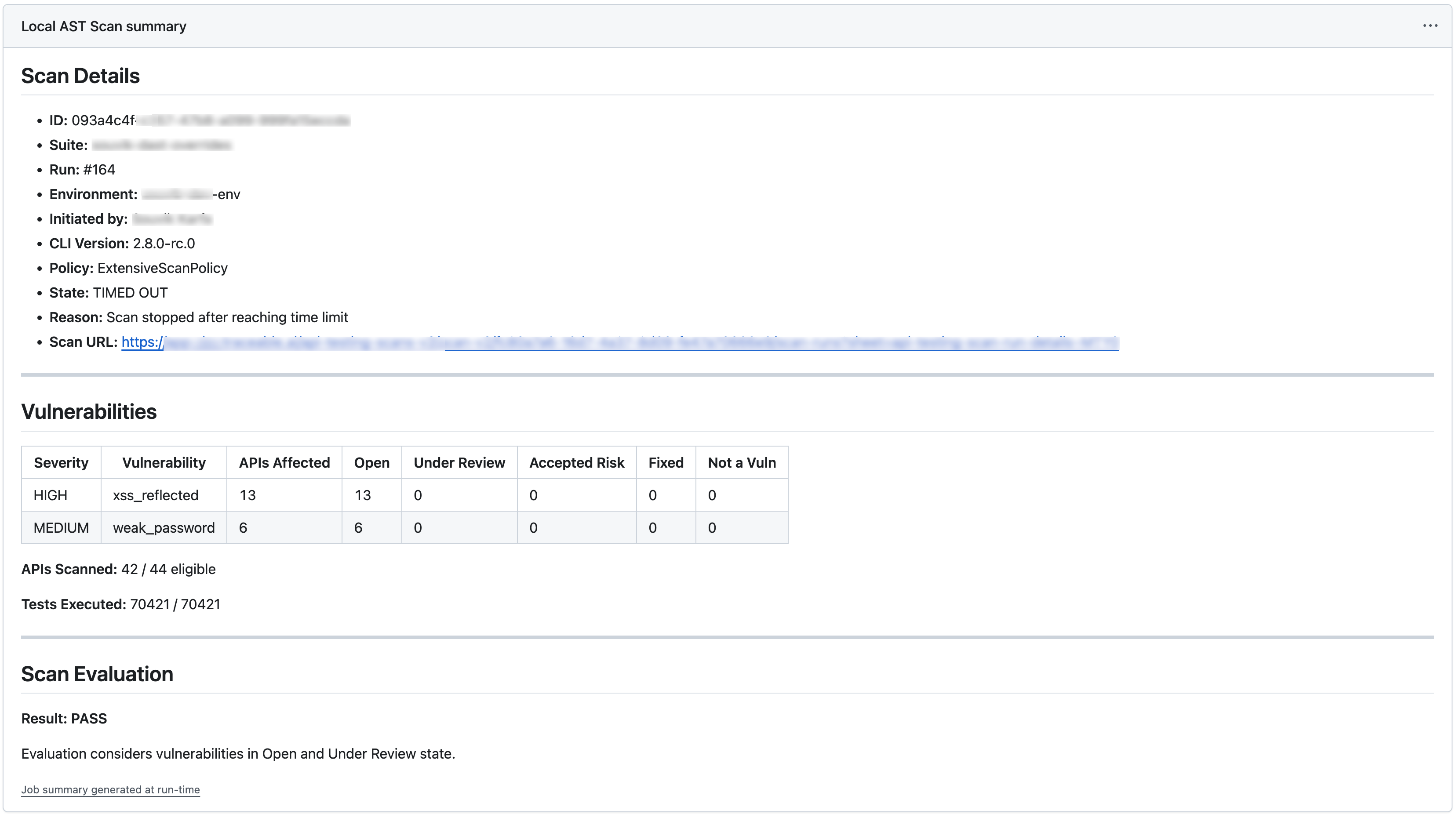
Scan report
You can view the report under the Actions tab in your GitHub repository:
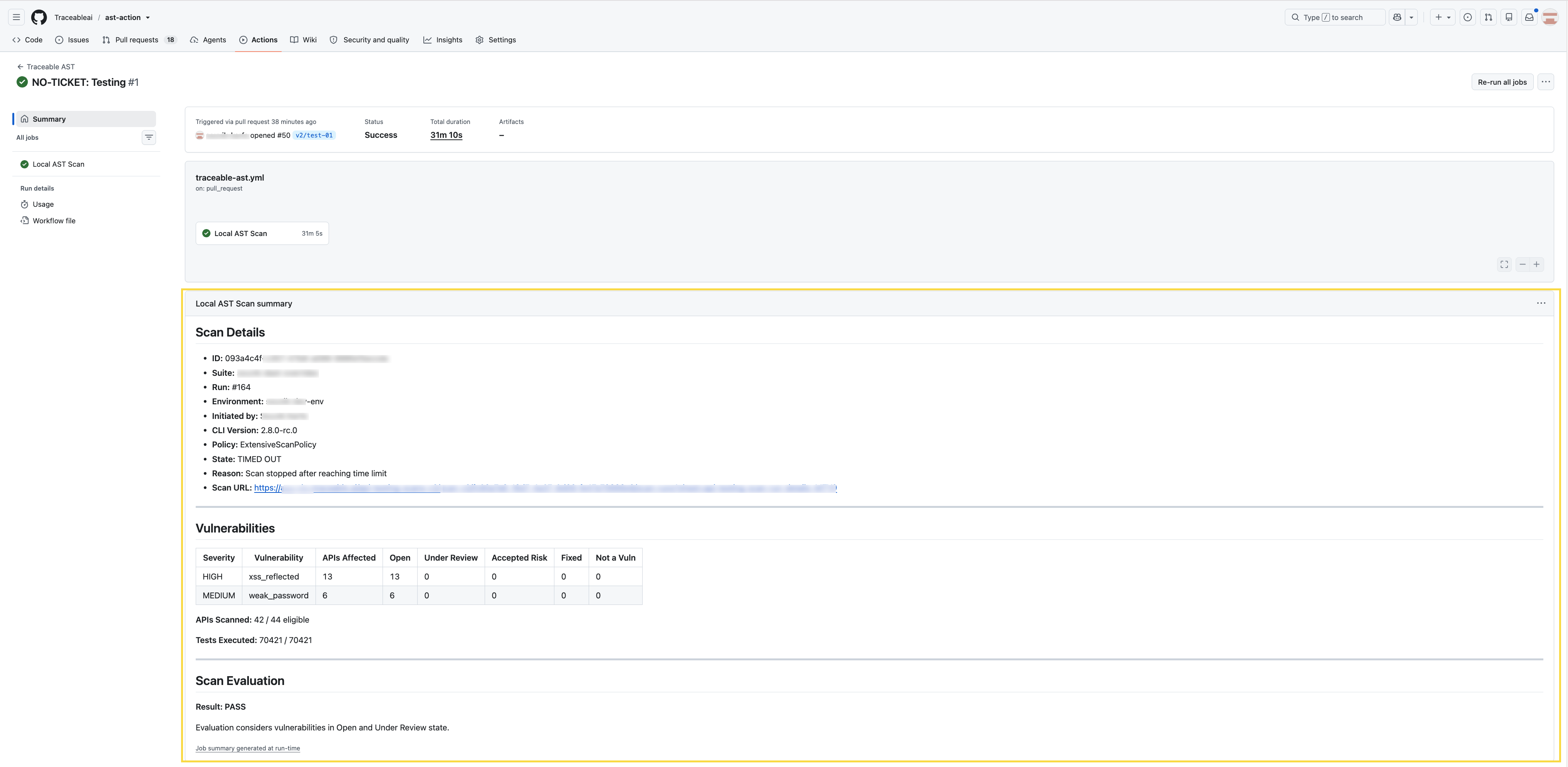
View scan report in GitHub repository