A scan that you create on the Traceable platform holds the baseline configuration for that scan. Scan overrides enable you to change specific parts of that baseline for a single run via the Traceable CLI, without editing the scan itself or creating a new one.
What you will learn from this topic
By the end of this topic, you will be able to understand:
How to override the target URL, authentication hooks, and API specifications of a scan run.
How to queue a scan to a remote runner and apply overrides.
Before you begin
Make a note of the following before you use scan overrides:
Ensure that you are using Traceable CLI version 2.8.0 or later. For more information, see CLI Pre-checks and Installation.
Make sure you note the name or ID of the scan you wish to override. For more information, see Retrieve scan name and Retrieve scan ID.
Understand scan overrides
The scan on the Traceable platform provides the baseline configuration. Passing a CLI flag overrides its setting for that run only, and you can pass multiple flags in the same run. Any setting you do not override keeps the scan's original configuration. When a setting is defined in more than one place, Traceable resolves the configuration in the following order of precedence, from highest to lowest:
CLI Flag > Config file > Platform scan configuration > Platform defaults
Retrieve scan name
You can find the name of your scan by following the given steps:
Navigate to Testing → Scans.
Copy the scan name from the corresponding row.
Retrieve scan ID
You can find the scan ID for your scan by following the given steps:
Navigate to Testing → Scans.
Select your scan.
Copy the scan ID from the URL.
.png)
Retrieve Scan ID
Supported commands
Scan overrides apply to the following commands:
traceable ast scan initAndRun --scan-name <scan-name> [override flags]
traceable ast scan initAndRun --scan-id <scan-id> [override flags]
traceable ast scan queue --scan-name <scan-name> [override flags]
traceable ast scan queue --scan-id <scan-id> [override flags]
Note
Replace
<scan-name>or<scan-id>with the name or ID of your scan, respectively. For more information, see Retrieve scan name and Retrieve scan ID.You must provide either
--scan-nameor--scan-id. The two flags are mutually exclusive.
Use scan overrides
The following overrides are supported:
Override the target URL
Use the --target-url <url> flag to override the target URL of the scan. The <url> value must be a valid http:// or https:// URL.
Input | Behavior |
|---|---|
Flag omitted | Traceable uses the platform scan configuration. |
| Traceable overrides the platform scan's target URL. |
The following code snippet illustrates how to override the target URL:
traceable ast scan initAndRun --scan-name my-scan --target-url https://staging.example.comOverride authentication hooks
You can reference authentication hooks either by —-hook-names or by —-hook-ids. You can retrieve the hook name by navigating to Testing → Authentications → Name column (find your authentication).
Flag | Type | Description |
|---|---|---|
| Comma-separated string | References hooks by name. |
| Comma-separated UUIDs | References hooks by ID. |
Note
--hook-namesand--hook-idsare mutually exclusive.
The following table shows different use cases of the flag:
Input | Behavior |
|---|---|
Flag omitted | Traceable uses the platform scan configuration. |
| Traceable clears all hooks. The scan run executes without authentication. |
| Traceable overrides the platform scan's hooks with the specified hooks. |
Note
—-hook-namescan be used interchangeably with—-hook-idsfor the above set of commands.
The following code snippets give examples of different ways you can override authentication hooks:
# Override with specific hooks by name
traceable ast scan initAndRun --scan-name my-scan --hook-names "staging-auth"

# Override with specific hooks by ID
traceable ast scan initAndRun --scan-name my-scan --hook-ids "uuid-1,uuid-2"

# Clear all hooks
traceable ast scan initAndRun --scan-name my-scan --hook-names ""
Traceable executes the hooks in the order that you specify. If a hook name or ID does not exist on the platform, the scan errors out.
Override API specifications
Specification overrides replace the platform scan's traffic configuration. You can override only one specification type per scan run. For more information on traffic types, see Understanding Scans and Traffic Types.
Retrieve API specification file paths
You can find the file path to your API specifications in your project’s GitHub repository. The following are the accepted file path formats:
Absolute:
/path/to/spec.yamlRelative:
./specs/openapi.yamlDirectory:
./specs/(files with matching extensions are recursively collected)
Local files are automatically uploaded to the platform before the scan starts, if provided.
Retrieve API specification IDs
You can find the API specification IDs by following the steps given below:
Navigate to Discovery → Documentation.
Select the API specification file for which you wish to obtain the ID.
Copy the API ID from the URL.
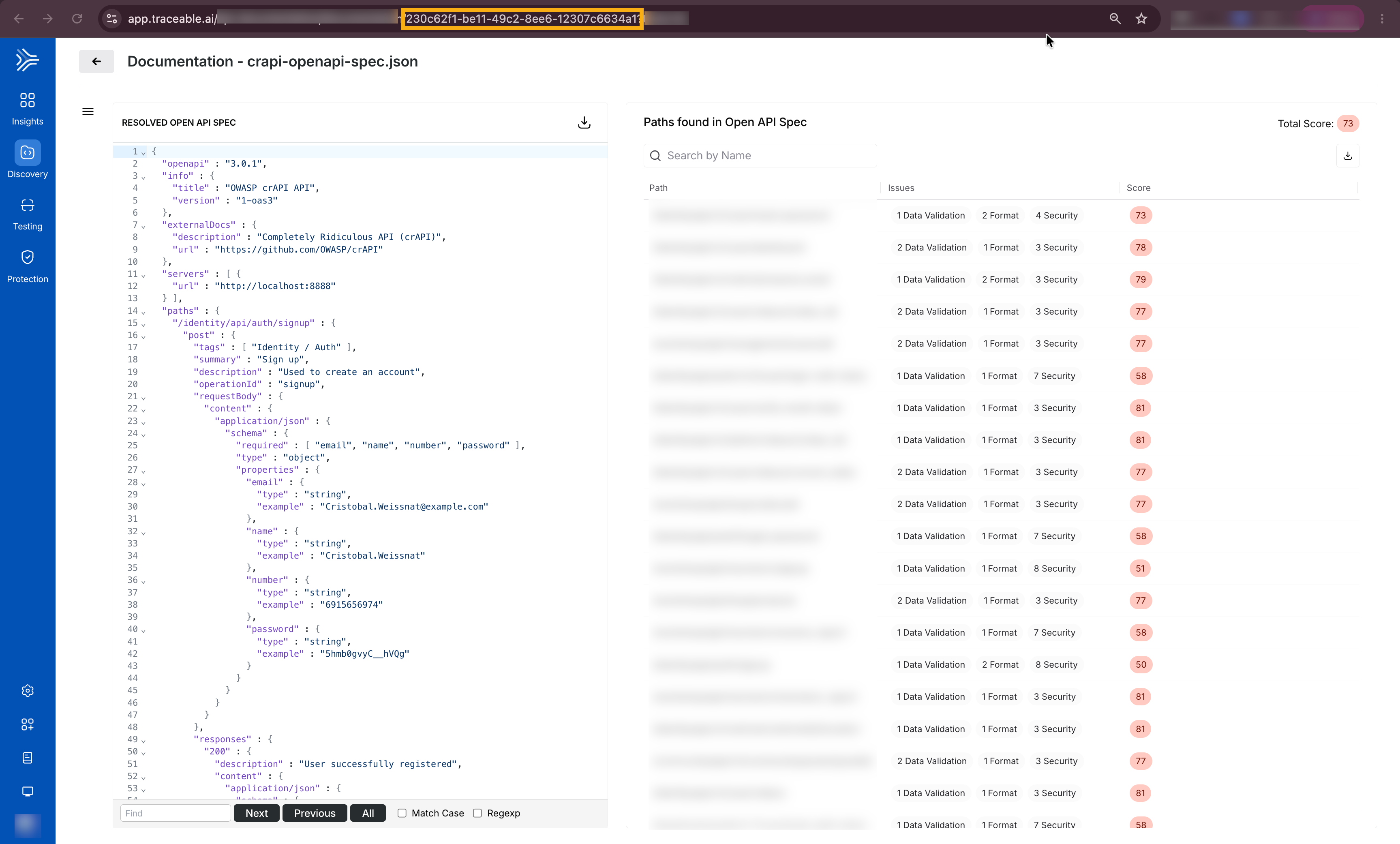
Retrieve API spec ID
Overrides are supported for the following specification types:
OpenAPI
GraphQL
WSDL
Postman
The following table describes the available flags for OpenAPI:
Flag | Type | Description |
|---|---|---|
| Comma-separated file or directory paths | Traceable uploads local files automatically. Directories are walked recursively for |
| Comma-separated UUIDs | References specifications that are already on the platform. |
Note
--openapi-spec-filesand--openapi-spec-idsare mutually exclusive. You cannot use both together.
The following table describes the available flags for GraphQL:
Flag | Type | Description |
|---|---|---|
| Comma-separated file or directory paths | Traceable uploads local SDL files automatically. Traceable walks directories recursively for |
| Comma-separated UUIDs | References schemas that are already on the platform. |
Note
--graphql-schema-filesand--graphql-schema-idsare mutually exclusive. You cannot use both together.
The following table describes the available flags for WSDL:
Flag | Type | Description |
|---|---|---|
| Comma-separated file or directory paths | Traceable uploads local files automatically. Traceable walks directories recursively for |
| Comma-separated UUIDs | References specifications that are already on the platform. |
Note
--wsdl-filesand--wsdl-idsare mutually exclusive. You cannot use both together.
Postman overrides differ from other specification types. They consist of two separate artifacts, a collection and an environment, and each accepts a single value rather than a comma-separated list. For more information on Postman collections, see Postman collections with AST. The following table describes the available flags for Postman:
Flag | Type | Description |
|---|---|---|
| Single file path | The collection file. Traceable uploads it automatically. |
| Single UUID | References a collection on the platform. |
| Single file path | The environment file. Traceable uploads it automatically. |
| Single UUID | References an environment on the platform. |
Note
Exclusivity applies within each pair, not across them. The following pairs are mutually exclusive:
--postman-collectionand--postman-collection-id
--postman-environmentand--postman-environment-idCross-pair combinations are allowed, such as
--postman-collection-id <uuid> --postman-environment ./env.json.
Use scan overrides in CI/CD
Overrides enable you to customize scan configuration at runtime without changing the underlying scan definition. Pass override values as CLI flags to adapt the scan to your execution environment.
Because overrides are supported directly by the Traceable CLI, they can be used with any CI system that can invoke the CLI.
The following options are available depending on your setup:
GitHub Actions — The Traceable AST GitHub Action exposes every override flag through the
additional_cli_optionsinput. For supported actions, their inputs, and sample workflows, see GitHub Actions.Any other CI system — Invoke the CLI directly and pass overrides as flags. For command sequences and exit code handling, see Run scan from CLI.