Updates (July 2026 to September 2026)
August 2026 — Updated the page to add information about creating scans with the Repositories. For more information, see Select source and attacks.
A scan in Traceable defines what to test, how to test it, and which configurations to use. By creating a scan, you can efficiently manage and organize your security testing workflows, ensuring consistent coverage and easier maintenance across various environments and APIs.
To help you create efficient, optimized scans, Traceable provides recommendations for creation that you can use according to your specific requirements. For more information, see Scan Creation Recommendations. Once you create a scan, Traceable also lets you pause and resume it from the CLI. For more information, see Pause and Resume Scan.
What you will learn from this topic
By the end of this topic, you will be able to understand:
How to set up a scan.
How to configure advanced settings such as authentication, traffic filters, and scan evaluation criteria for a scan.
How to start an ad hoc scan, and how to pause or resume a scan from the CLI.
Before you begin
Make a note of the following before creating a scan:
Make sure that you have a clear understanding of the available traffic types. For more information, see Traffic Types.
Make sure that you have at least one policy configured, as Traceable requires a policy to run a scan. For more information, see Policies.
Make sure that a Runner is installed and is active for scan execution. For the steps to install one, see Runners.
Create a scan
You can create a scan by navigating to Testing → Scans, and clicking Create Scan in the page’s top right corner. Creating a scan requires just a few simple steps:
Provide scan details: Specify the scan name, select an environment, frequency, and enable incremental scans.
Select the source and attacks: Select how Traceable should generate or capture traffic, the APIs you wish to test, and define the attacks Traceable should simulate on the above APIs.
Configure advanced settings: Set up authentication, runners, timeouts, and integrations.
Complete the following steps to create a scan:
Step 1: Provide general scan details
Creating a scan starts with you defining where (environment) and when (frequency) Traceable should execute the scan. Provide the following details:
.png)
Provide Scan Details
Scan Name: A unique name for the scan, for example, EndpointScan. Traceable uses this name to show the scan on the Scans page.
Note
The scan name should contain alphanumeric characters, underscores, and hyphens only.
Environment: The environment that contains the endpoints you wish to scan, for example, fintech-app.
Frequency: The number of times you wish to execute the scan:
One Time: Traceable executes the scan once post-creation. To run the scan as required, see Start an ad hoc scan.
Daily: Traceable executes the scan once daily at the time you select.
Weekly: Traceable executes the scan every week on the day(s) and time you select.
Monthly: Traceable executes the scan every month on the day(s) and time you select.
Incremental Scans (for Daily, Weekly, and Monthly frequencies only): Traceable only scans the endpoints that were not scanned in the previous run. For more information, see the section below:
Incremental Scans
As part of incremental scans, Traceable only scans the endpoints not scanned in the previous run. These may be the ones that were:
Skipped for some reason
Added to the scan post-creation
Discovered in the environment post-execution of the previous run.
How is it useful?
Incremental scans are helpful as they:
Avoids rescanning unchanged APIs, saving time and resources.
Provide quick visibility into the issues detected due to the recent changes.
Focus on new and updated APIs that may introduce new issues.
Caveats
You may change the policy or attack set against which Traceable evaluated the endpoints between successive scan runs. In such cases, Traceable executes a full scan.
An endpoint's signature and other properties may change after it has been scanned. For example, an endpoint that was initially unencrypted may now be encrypted. These changes affect how Traceable evaluates the endpoint. Therefore, Traceable rescan endpoints automatically to ensure results remain accurate, even if the endpoint was previously scanned.
In some scenarios, the endpoint properties may not change, but they might still contain issues for other reasons. Traceable recommends setting up a short full scan window to identify such issues. This helps ensure that all endpoints are regularly scanned.
Click Next once you have specified the above details.
Step 2: Select the source and attacks
After defining where and when you want to scan, you must define which (traffic type), what (assets), and how (attack) Traceable should test.
Select the Traffic Type from the following:
XAST Live: Traceable executes the scan on live incoming traffic.
XAST Replay: Traceable executes the scan on stored APIs. This is available in environments with Replay enabled. For enabling Replay, see Environment Config.
DAST: Traceable executes the scan based on the specifications you upload. Traceable supports the following documentation types:
OpenAPI Spec
WSDL Spec
Postman Collection
GraphQL Schema
Repositories
Note
DAST does not require you to instrument an app, however you must choose an environment for the DAST scan to create the default service and list the APIs under it. By default, the service name is traceable-oas-processor.
Based on the traffic you select, Traceable displays the following configurations:
You can configure a XAST Live or Replay scan by following the given steps:
Select API Endpoints: Select the API endpoints you wish to test as part of the scan. You can select from the following:
All Endpoints: Traceable tests all endpoints associated with the environment you selected in Step 1 above.
Specific Endpoints: Traceable tests the endpoints you select from the available list.
Endpoint Selection Condition: Traceable tests the endpoints based on the conditions you select.
You can also click View Endpoints to view the endpoints that Traceable has selected based on the condition you select above.
(Optional) Target URL: Specify the domain on which you wish to execute the scan, for example, mydomain.com.
.png)
XAST Live and Replay Scan Creation
You can configure a DAST scan by following the given steps:
Document Type: You can select the type of specification you wish to use for testing:
Open API Spec:
API Specification: Select one or more specs from the list of pre-uploaded ones, or upload new ones according to your requirements.
Configure API dependencies & sample values: Define the application's dependency graph. When an API requires one or more prerequisite APIs to run first, the dependency ensures that those calls are executed in order during the DAST scan. For example,
GET /orders/{order_id}depends onPOST /service/orderbecause an order must be created before it can be retrieved. For more information, see Understanding API Dependencies.
WSDL Spec:
API Specification: Select one or more specs from the list of pre-uploaded ones, or upload new ones according to your requirements.
Note
For WSDL Spec:
Merge any XSD definitions into the corresponding WSDL file before uploading. Traceable does not support standalone XSD file parsing.
Ensure that all references are defined within the same WSDL file. Traceable does not support external or cross-file references.
Traceable does not support the
complexContentelement in WSDL files.
GraphQL Spec:
Introspection Enabled: Select this option to enable Traceable to dynamically extract the schema from the Target URL you specify below. This enables you to run security tests on the discovered schema without uploading a specification.
API Specification: Select one or more specs from the list of pre-uploaded ones, or upload new ones according to your requirements.
Postman Collection:
Collection: Select one or more collections from the list of pre-uploaded ones, or upload new collections according to your requirements.
(Optional) Environment Doc: Select a Postman environment document from the list of pre-uploaded ones, or upload a new document according to your requirements. Traceable uses this document to resolve variable references present in the collection(s) you selected above.
Repositories: Select this option to test using the API specifications Traceable has discovered from the selected code repository. Traceable surfaces these APIs in the form of OpenAPI specs. You can preview the discovered API specifications.
Note
Traceable only lists a repository once it has been scanned and has generated API specifications. If you are unable to select your repository, scan it and ensure API specifications have been generated. For the steps to scan a repository, see Getting started with private repository scans.
.png)
DAST Scan Creation
Target URL: Specify the domain on which you wish to execute the scan, for example, mydomain.com .
Select or create policy: You can either select a predefined policy or create a custom policy. Based on the policy, Traceable executes attacks against the selected endpoints to detect issues. For more information on available predefined policies, see Available policies.
Traceable provides you with the following options related to a policy:
.png)
Policy Selection
Select existing policy: Select a policy from the drop-down list. Traceable shows the attacks configured as part of the policy. In the attack list, you can also perform the following actions according to your requirements:
Create a new policy using the same attack selection: Click the Copy icon to create a policy that inherits the attack selections from the selected policy. In the pop-up window, specify the policy details and customize the attack types according to your requirements. This helps when you wish to tweak attack selections by adding or removing specific attacks without altering the original policy. For more information, see Policies.
Edit the selected policy: Click the Edit icon to customize the attack types or policy names according to your requirements.
Note
This option is not available for Traceable defined policies. For more information on the available predefined policies, see Available policies.
Create new policy: Click Create New to create a new policy according to your requirements. For more information, see Policies.
Once you create the policy, Traceable automatically selects it to attack the endpoints.
Note
Traceable also provides AI Scan Policies that you can use to detect AI-related issues, such as LLM System Prompt Leakage and AI SQL Injection. For more information, see AI Security Testing.
Click Next once you have specified the above details.
Step 3: Configure advanced settings
In this step, you can configure the advanced settings, such as authentication and scan evaluation criteria:
Note
Traceable performs an AND operation between the endpoint selection criteria in Step 2 above and the Filter Traffic, URL Regex, and Scan Evaluation Criteria configurations (if configured) mentioned below. As a result, endpoints selected in the above step are scanned only if they also match the configurations mentioned above.
If none of the selected endpoints match these conditions, Traceable does not scan any endpoints.
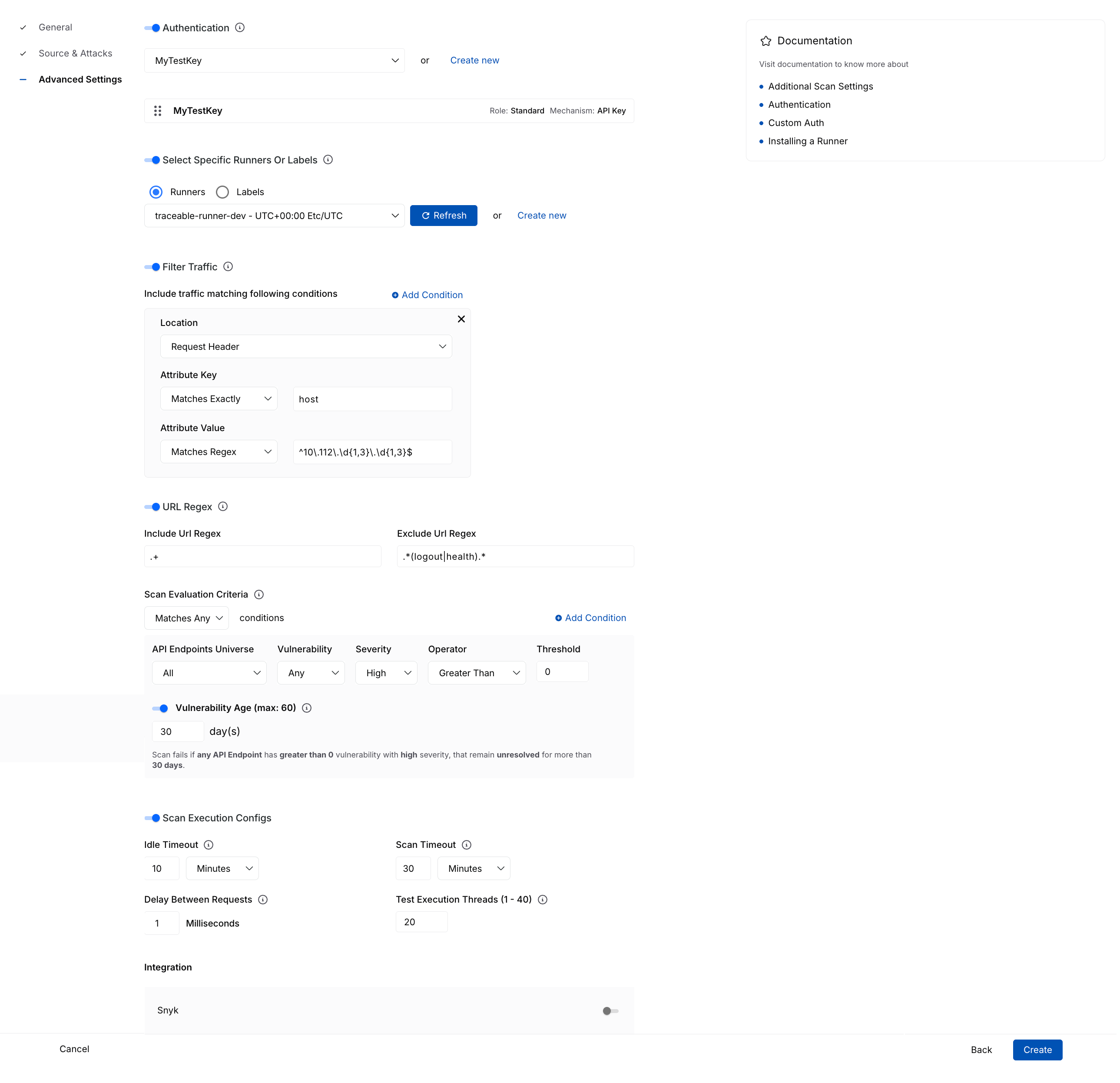
Advanced Settings
Authentication: Enable this toggle to select one or more predefined authentication hooks Traceable should use during testing. This ensures that Traceable can access secured endpoints during the scan. You can also create a new authentication hook according to your requirements. For more information, see Authentication.
Select Specific Runners or Labels: Enable this toggle to select the runners Traceable should use for scan evaluation. You can select specific runners or a runner label from which Traceable should select a runner for scanning. If you do not enable this toggle, Traceable automatically selects a runner for you. For more information, see Runners.
Filter Traffic: Allow granular filtering of traffic to include endpoints that match specific conditions. The following table describes the available fields:
Attribute
Purpose
Location
Specify where Traceable should look for the attribute, for example, the Request Header.
Attribute Key
Define how Traceable should match the key and specify the name of the key to match.
Attribute value
Define the value corresponding to the attribute key, for example, Matches Regex.
URL Regex: Include or exclude endpoints based on regular expressions:
Include URL Regex: Specify a regular expression to include specific API endpoints in the scan, for example,
.+includes all URLs.Exclude URL Regex: Specify a regular expression to exclude specific API endpoints in the scan, for example,
.*(logout|health).*includes all health checks and logout paths.
Scan Evaluation Criteria: Define the conditions based on which Traceable should evaluate the scan:
Attribute
Purpose
Matches All/Any
Define whether Traceable should execute an AND or an OR operation between the conditions.
API Endpoints (default)/Services
The scope of assets (all or new) within which the criteria should apply.
Vulnerability
The scope of vulnerabilities (any or new) corresponding to the above-selected assets. Based on your selection, Traceable looks for vulnerabilities in the above-selected assets.
Severity
The severity associated with the vulnerability, based on which Traceable should evaluate the criteria.
Operator
The operator for comparing the above-selected criteria and threshold.
Threshold
The number of vulnerabilities Traceable should look for, as part of the scan.
Vulnerability Age
The number of days (1-60) for which the vulnerability should be open, for the criteria to be successfully evaluated.
You can click + Condition to add one or more conditions according to your requirements.
Scan Execution Configs: Allow granular filtering of traffic to include endpoints matching specific conditions:
Attribute
Purpose
Idle Timeout
Define how long Traceable should wait if no activity occurs.
Scan Timeout
The maximum duration for Traceable to complete the scan.
Delay Between Requests
Milliseconds that Traceable should wait between sending individual requests.
Test Execution Threads
The number of concurrent threads that Traceable should use for executing the scan.
Integration: Integrate Snyk with the scan according to your requirements:
Snyk Organization: The Snyk organization in which you wish to include the scan results.
Snyk Project: The Snyk project associated with the organization. For information on setting up the integration, see Snyk Integration.
Click Create once you have configured the above settings. For information on how Traceable handles scans after creation, see FAQs.
Start an ad hoc scan
While Traceable executes the scan according to the schedule you set when creating the scan, you can start an ad hoc scan immediately. To do so, complete the following steps:
Navigate to the Scans dashboard.
Search for and click the scan you wish to run.
In the top right corner of the Scan Details page, click the Start Scan (
 ) icon.
In the Start New Scan slide-out panel, select how you wish to run the scan. You can choose to run the scan using:
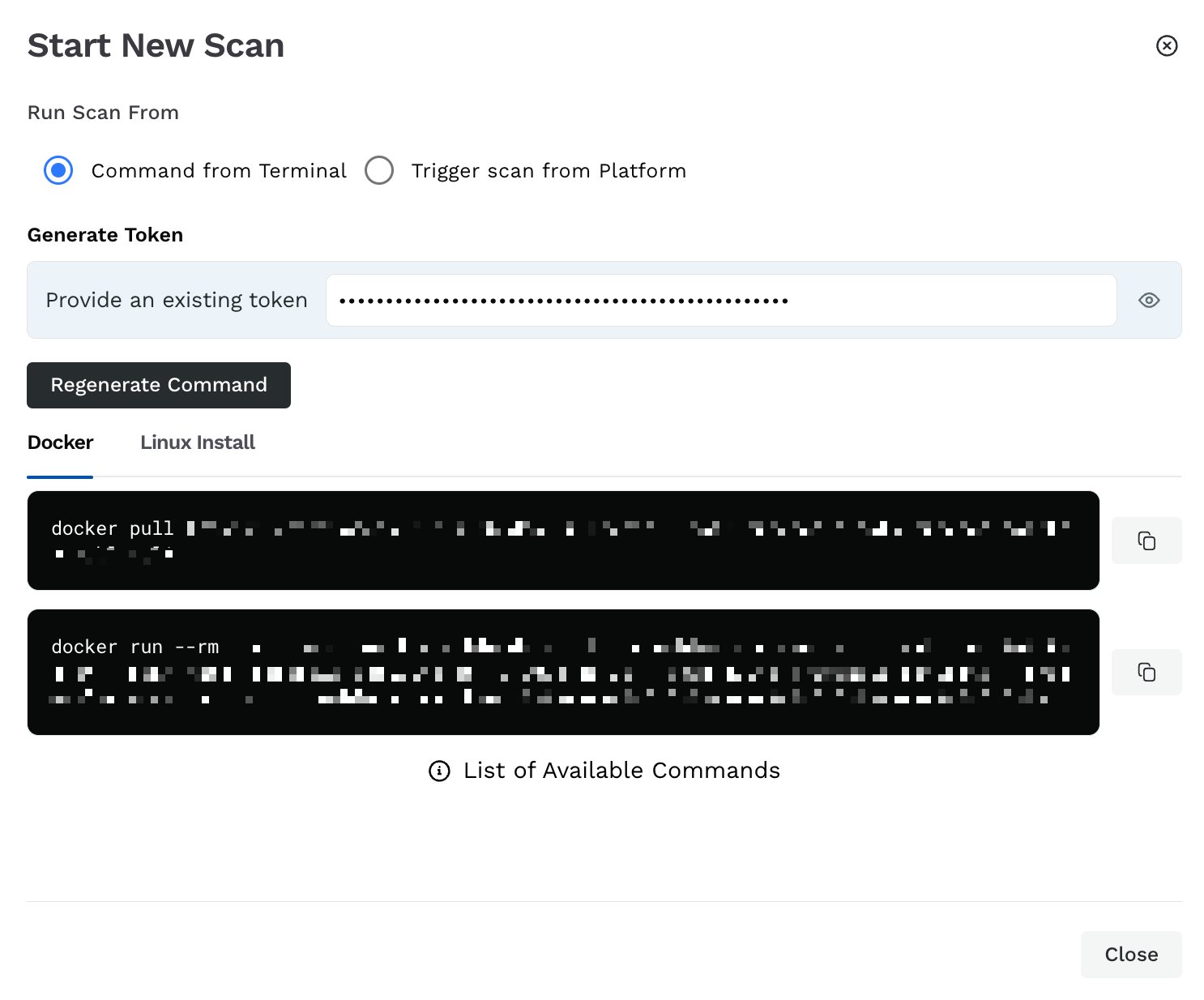
Start Scan
Command from Terminal: You can run the scans using your system terminal. To do this, complete the following steps:
Click Generate New Token or use an existing platform token.
Click Generate Command.
Execute the displayed commands in either Docker or Linux Install.
Trigger scan from Platform: You can run the scan on the Traceable platform. For this, complete the following steps:
Specify the Scan Name.
Select how Traceable should run the scan:
Allow Traceable to automatically select a runner.
Select a runner according to your requirements.
Select a runner label according to your requirements.
For more information on runners, see Runners.
This scan is executed on an ad hoc basis and is listed in the Scan Runs tab. For more information, see Scan Details.
Run a scan from the CLI
Traceable enables you to run a scan from the CLI. You can also pause and resume scans via CLI. For more information, see Run a Scan from CLI.
Note
You can configure a scan only on the Traceable platform.