Traceable's GitHub App allows you to run code scans against repositories in your GitHub organization with ease. This integration enables you to monitor code risks directly within your CI/CD pipeline, surfacing repository metadata and scan results in the Traceable dashboard.
What will you learn in this topic?
By the end of this topic, you will be able to:
Understand the prerequisites for the GitHub App integration.
Understand the steps to add a new GitHub with Traceable.
Before You Begin
Make a note of the following before integrating GitHub actions with Traceable:
You have administrative access to your GitHub organization (or the ability to request app installation).
You are logged into your Traceable account.
You know which repositories you want to scan.
Configure the GitHub App Integration
To configure the GitHub app in Traceable, complete the following steps:
Step 1 — Navigate to CI/CD Integrations
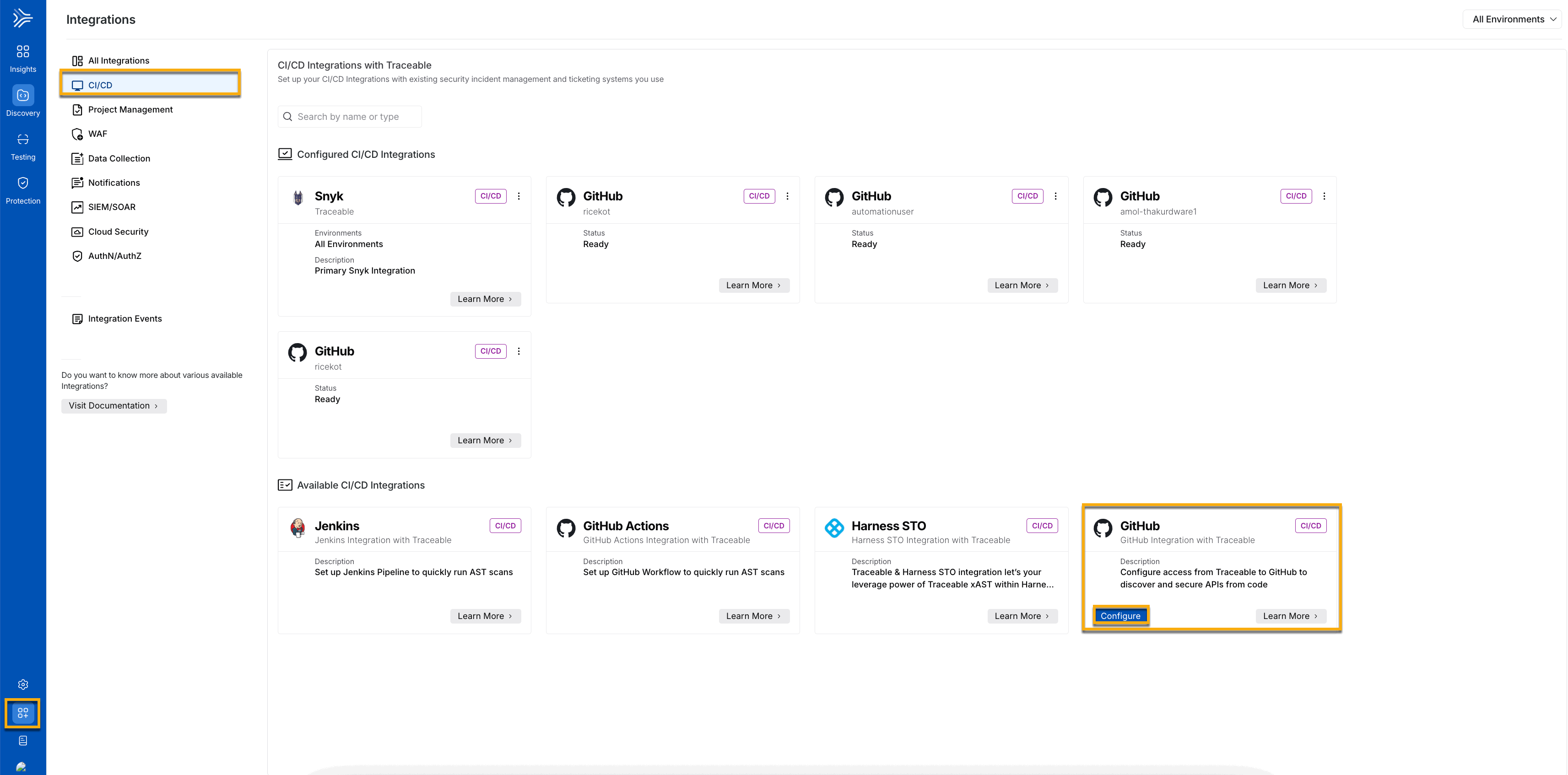
On the All Integrations page, navigate to CI/CD Integrations, and search GitHub in the search bar. You can click the Configure button on the GitHub tile.
Step 2 — Choose Traceable’s GitHub App
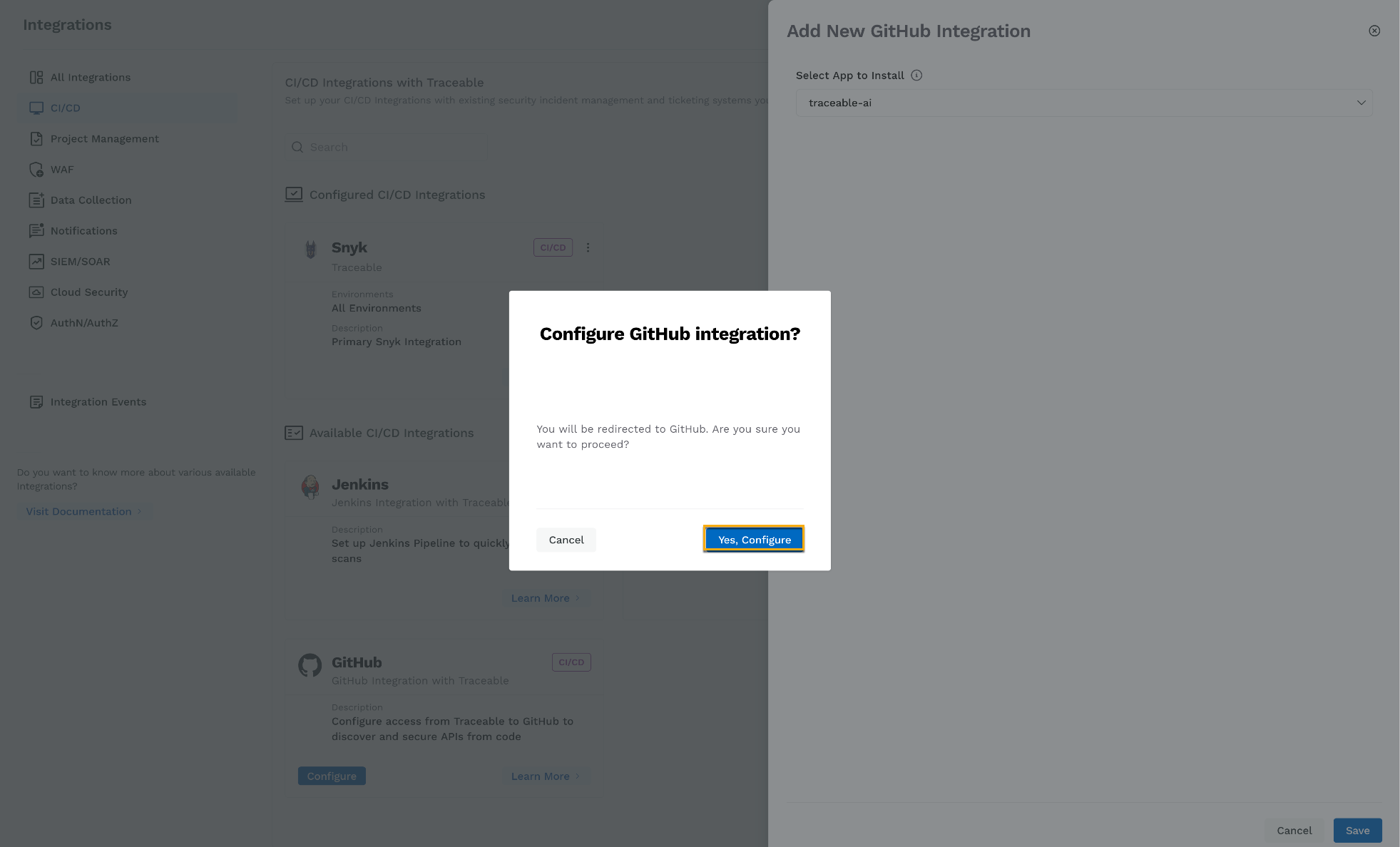
In the Add New GitHub Integration slide-out window, select Traceable's GitHub App from the dropdown, and ensure that Save is enabled.
.png)
Step 3 — Authorize the App in GitHub
You will be redirected to GitHub to complete the app installation. Confirm the action in the GitHub pop-up by clicking Yes, Configure.
Step 4 — Choose Your GitHub Organization
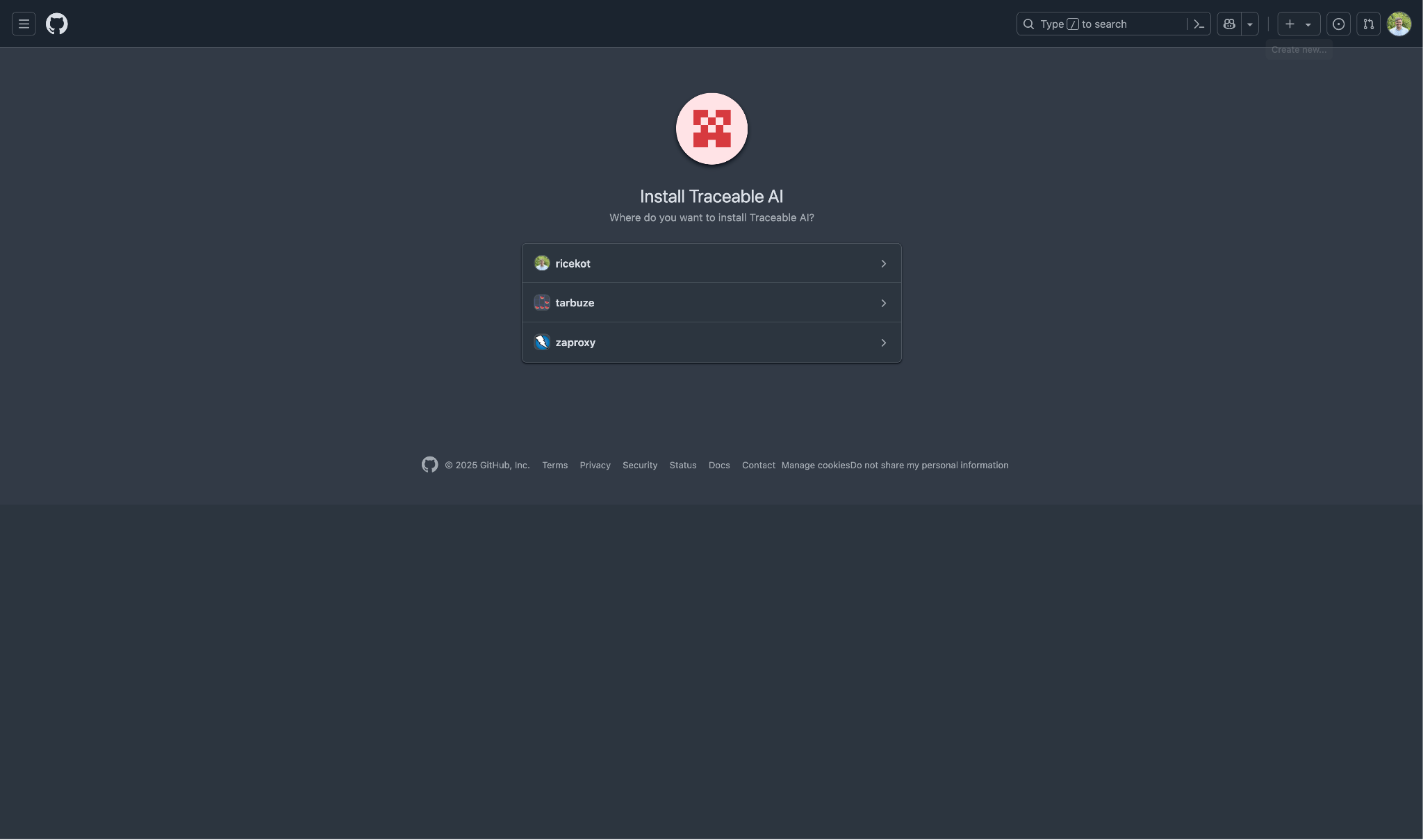
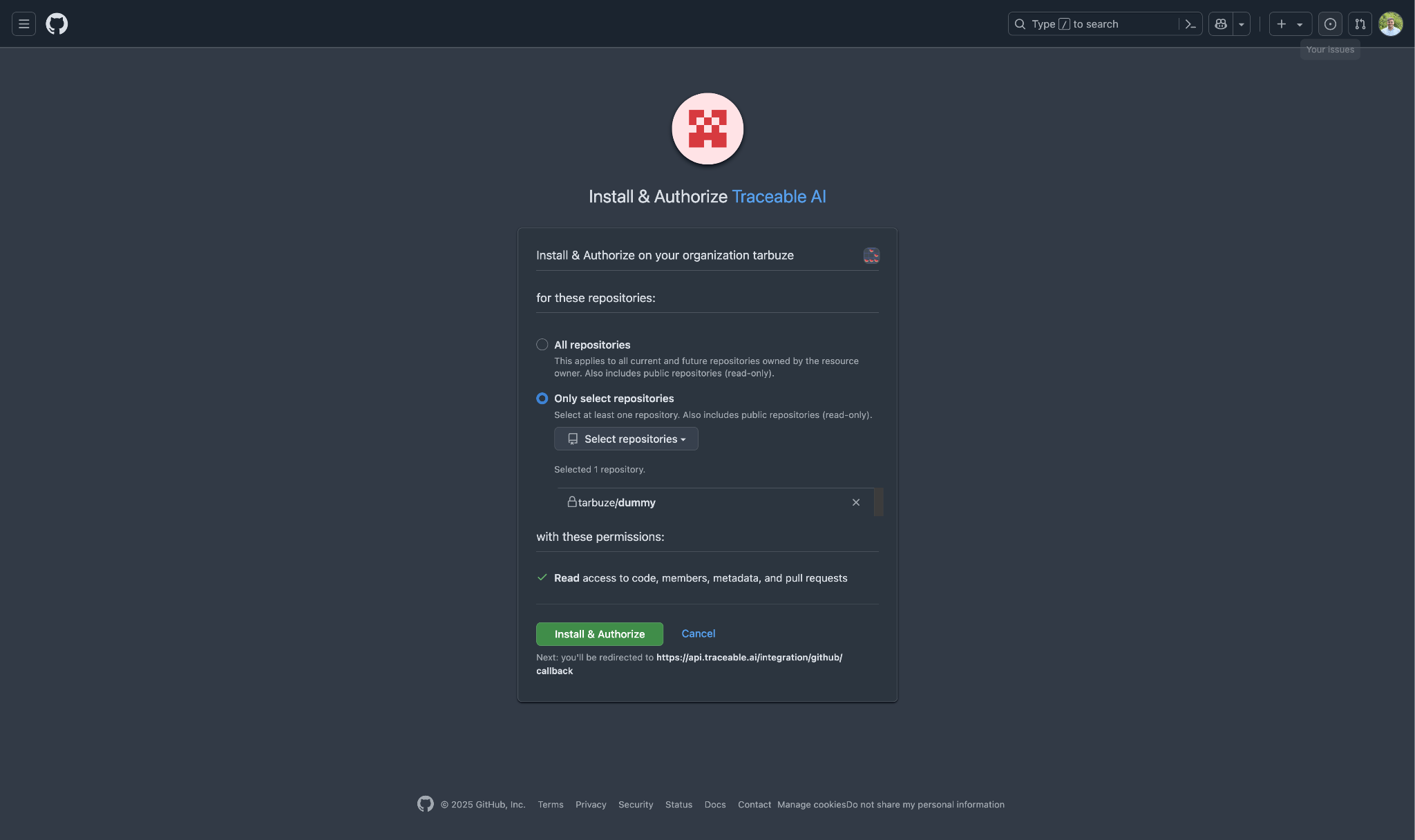
In GitHub, select the organization where you want to install the app.
Step 5 — Select Repositories
Choose the repositories you want the Traceable GitHub App to access.
These repositories will be listed under Discovery → Inventory → Repositories in the Traceable dashboard.
You can modify repository selection later.
If you do not have admin access, you will be prompted to send a request to an organization administrator.
Click Install & Authorize.
Step 6 — Confirm Integration in Traceable
After authorization, you will return to Traceable. You should now see a GitHub tile under the Configured CI/CD Integrations section. You can reconfigure the app at any time from here.
.png)
Viewing Repositories and Initiating a Code Scan
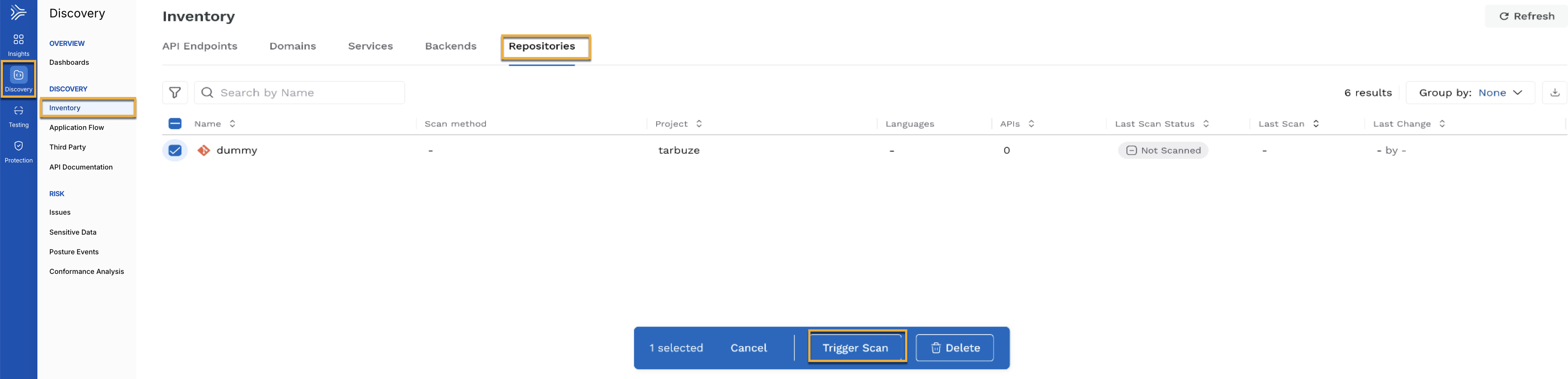
To view the repositories, navigate to Discovery → Inventory → Repositories. You should now see the repositories you selected during setup.
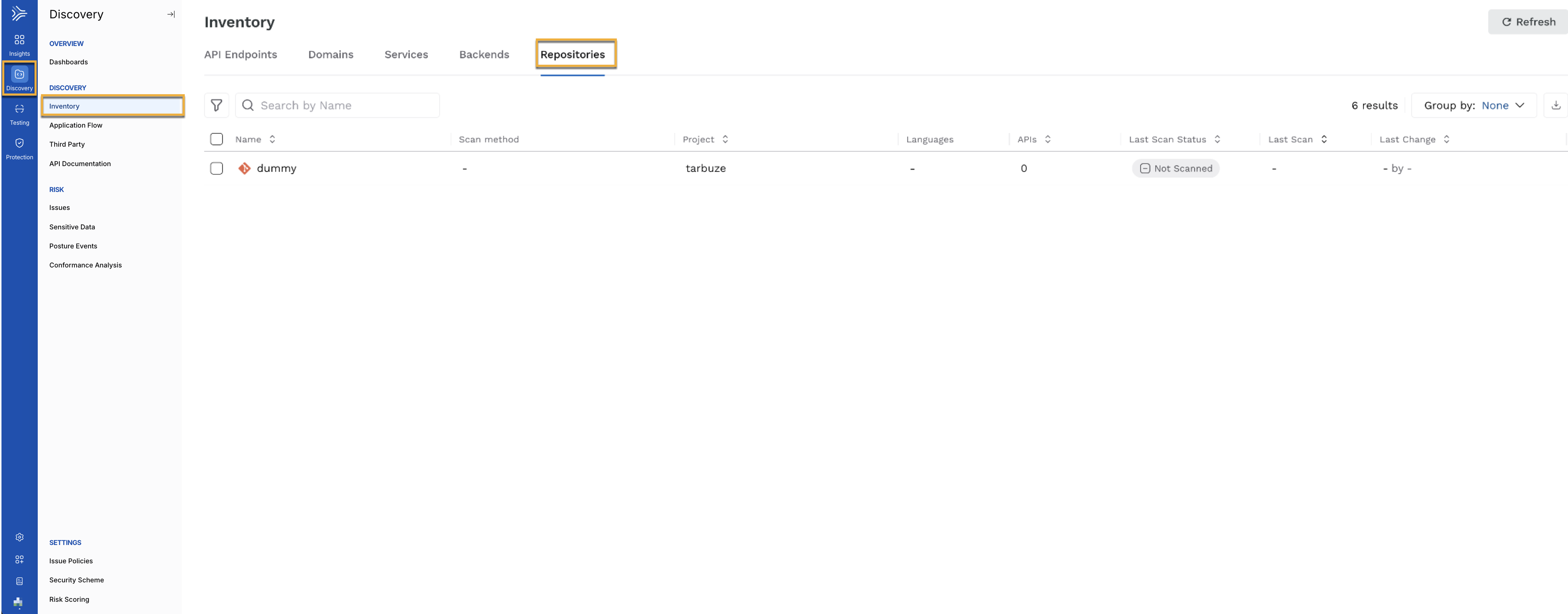
Select any repository from the list and click Trigger Scan to initiate a code scan.