Updates (July 2026 to September 2026)
August 2026 — Updated the topic to add information about the Toxic threat type and AI Sensitive Data Protection to reflect expanded coverage across both prompts and responses. For more information, see Understand AI threat types.
AI Firewall helps you secure AI-powered systems against emerging threats targeting large language models (LLMs), generative AI applications, and APIs that contain AI-native data. As you increasingly embed AI into your workflows, these models can become targets for attacks from malicious users who attempt to manipulate prompts, extract sensitive data, or influence model performance.
The AI Firewall page lets you define and manage policies to protect your AI assets and services against malicious activity. These policies enable you to detect and monitor threats specific to AI applications, such as prompt injection, model manipulation, or data exfiltration attempts. AI Firewall policies help ensure that your AI assets, such as models and integrated LLMs, operate securely within your applications by automatically identifying high-risk behavior and enforcing custom protection rules.
.png)
AI Application Protection Policies
What you will learn from this topic
By the end of this topic, you will be able to understand:
The concept of AI Firewall policies and how they help.
The way to access the AI Firewall policies page.
The default threat types provided by Traceable and how to manage them.
The steps to add a custom AI Firewall policy.
Before you begin
Before you understand AI firewall policies, make a note of the following:
Make sure you have the Settings RBAC permissions under Module Level Access → Protection to create the rules. For more information, see RBAC.
Understand AI threat types
By default, Traceable provides multiple AI threat types that you can use to categorize and respond to different risks in AI systems. The following are some threat types:
Threat Types | Description |
|---|---|
Toxic Unsafe Content | Detects toxic and unsafe content, hate speech, harassment, self-harm content, and other harmful language that can show up in your AI application, whether an attacker provoked it or not. Traceable detects it using both signature-based rules and machine learning (ML) models, so coverage keeps pace as these patterns evolve. |
Prompt Text Evasion and Misdirection | Detects attempts to bypass safety and moderation controls by disguising prompt content. Attackers may use alternate languages, invisible characters, or intentionally ambiguous phrasing to hide malicious intent and generate restricted output. |
Prompt Injection | Detects prompts designed to manipulate model behavior by overriding system instructions or introducing unauthorized directives. These attacks often attempt to extract sensitive information, bypass safeguards, or force the model to perform unintended actions. |
AI Sensitive Data Protection | Detects sensitive data, including personally identifiable information (PII), can surface in an AI prompt or in the model's response, exposing regulated or confidential information you never intended to share. Traceable identifies this data on both sides of the conversation, so exposure does not slip through just because it appears in a response rather than a prompt. Traceable supports a limited set of high-confidence data types for this detection. |
Model Governance | Detects usage that deviates from approved model governance policies, including unauthorized model selection, configuration changes, or version drift. This helps ensure AI usage remains compliant with organizational security and regulatory requirements. |
Code Detected in Prompt | Identifies prompts containing executable code or exploit patterns, such as XSS payloads, SQL injection attempts, shell commands, or runtime-targeted scripts. These inputs may indicate attempts to generate exploit code or probe unsafe model behaviors. |
AI Rate Limiting | Detects unusually high volumes of AI requests within a defined time window that may indicate automation abuse, misuse, or denial-of-service attempts. This helps maintain consistent system availability and performance. |
AI Input Explosion | Detects prompts intentionally structured to expand recursively or generate excessive token usage. These inputs attempt to exhaust processing resources, increase latency, or degrade model performance across AI workloads. |
Each threat type includes a set of rules you can manage to align with your AI security posture and requirements. While Traceable provides predefined rules, you can also define custom rules according to your specific requirements. For more information, see Create custom AI Firewall rules.
Key features
The following features are available in the AI Firewall tab:
Features | Description |
|---|---|
Threat Type/Threat Rule List | Threat Types categorize the predefined and custom AI Firewall rules by default, such as Prompt Injection. For information on creating custom AI Firewall rules, see Create custom AI Firewall rules. |
Threat Type/Threat Rule Information | Displays the following details for each threat type and rule:
|
Severity Levels | Displays the severity assigned to issues detected by the rule, indicating their impact on your application. |
Actions | Displays the action Traceable should take against the threat detected by the rule. The following actions are available for each rule:
While you can configure the actions above for each threat rule, each threat type displays the count of threat rules categorized by action. For more information, see AI policy management. |
Threat Type Status | Displays the current status of a threat type, Enabled or Disabled.
|
Filtering and Grouping | Filter and/or group rules using the Filter ( |
.png) ) icon to view the Description, Impact, Mitigation, and References of a threat type or rule.
) icon to view the Description, Impact, Mitigation, and References of a threat type or rule. ) icon or the Group By drop-down.
Create custom AI firewall rules
Creating an AI Firewall rule lets you define how Traceable should identify and respond to specific AI-related threats in your application. Each rule specifies a threat type, detection criteria, and the corresponding action to take when Traceable identifies that threat. By creating these rules, you can protect your AI assets according to your requirements, ensuring that LLMs and AI endpoints are monitored and safeguarded against targeted attacks and misuse.
To create a custom AI Firewall rule, navigate to Protection → Settings → Policies → AI Firewall tab, and complete the following steps:
Step 1 — Specify the rule details
Click the Ellipse (
 ) icon in the top right corner of the threat type list and click Add Rule.
(2).png)
In the Add Rule pop-up dialog, select the Threat Type from the list of available AI threat categories.
In the Add Rule: <Threat Type> slide-out panel, do the following:
Specify the Rule Name.
(Optional) Specify the rule Description.
Based on the threat type you selected above, complete Step 2 below.
Step 2 — Specify rule criteria
The following tabs outline the steps for specifying the rule criteria. Based on the threat type you selected while creating the rule, complete the following steps:
To add a new rule for AI Input Explosion, complete the following steps:
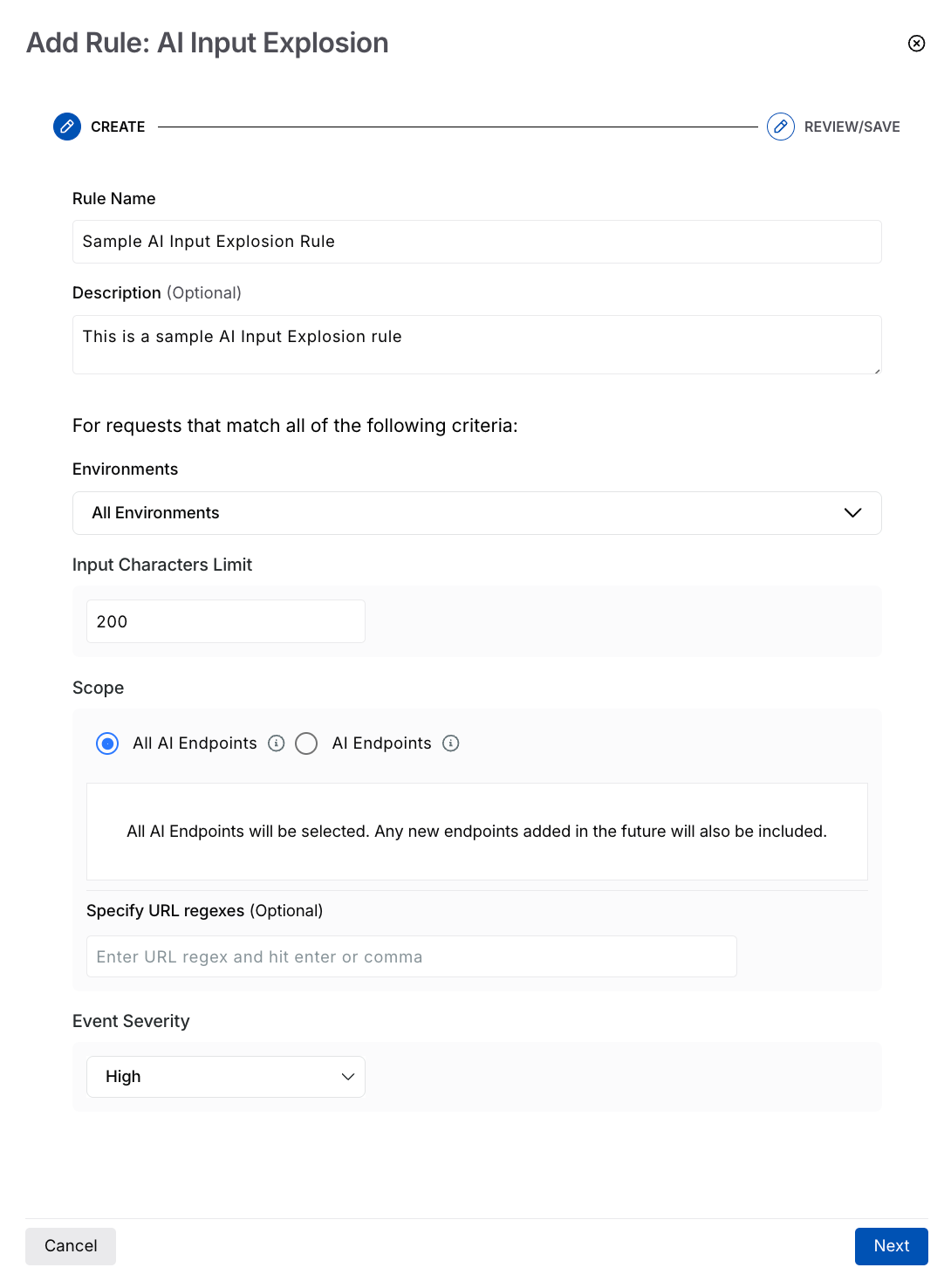
AI Input Explosion
Specify the Rule Name, for example, Sample AI Input Explosion Rule.
(Optional) Specify a relevant Description summary.
Select the Environment(s) where you wish the rule to apply.
Specify the Input Characters Limit after which Traceable should consider the actor as a threat.
Select the Scope (All or specific AI endpoints) where you wish to apply the rule.
(Optional) Specify URL Regexes if you wish to include specific API endpoints.
Select the Event Severity you wish to apply to the identified event, for example, High.
Click Next.
Review the details you specified above and click Submit.
To add a new rule for AI Rate Limiting, complete the following steps:
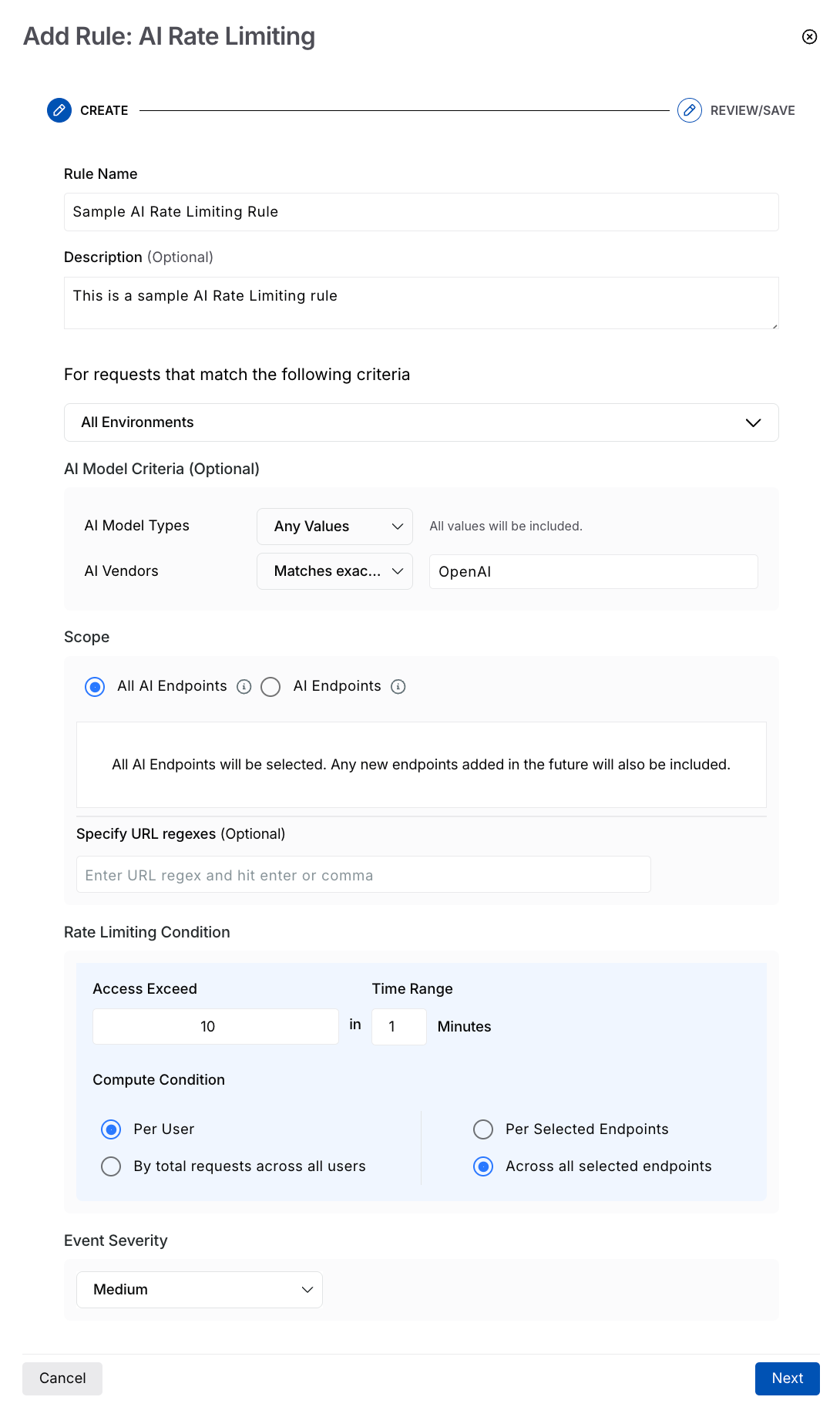
AI Rate Limiting Rule
Specify the Rule Name, for example, Sample AI Rate Limiting Rule.
(Optional) Specify a relevant Description summary.
Select the Environment(s) where you wish the rule to apply.
(Optional) Select the AI Model Criteria based on which Traceable should apply the rule:
AI Model Types — The AI models based on their purpose or functionality.
AI Vendors — The provider or platform behind each AI model or service.
Traceable provides the following operators that you can select from, for the above criteria:
Any values — Includes all available values in the rule.
Matches exactly — Includes the value(s) you specify.
Does not match exactly — Includes all value(s) except the ones you specify.
Contains string — Includes the value(s) that contain the string you specify.
Does not contain string — Includes all value(s) except the ones containing the string you specify.
Matches pattern — Includes all value(s) matching the pattern you specify.
Note
Traceable performs an AND between the criteria above.
The values you specify for the above criteria are case-sensitive.
Select the Scope (All or specific AI endpoints) where you wish to apply the rule.
(Optional) Specify URL Regexes if you wish to include specific API endpoints.
Specify the Rate Limiting Condition based on which Traceable should limit the API requests. This condition consists of the following parameters:
Access Exceed — The number of API requests after which Traceable should limit the user. For example, 50 requests.
Time Range — The duration for which the limit should apply. For example, a 5-minute time range means the API(s) can receive up to 50 requests within this 5-minute window. Once this limit is reached, Traceable limits the user.
Compute Condition — A combination of conditions on which the above limits should apply:
Per user and Per selected endpoints — If a user exceeds the above-set limit for an API endpoint, Traceable implements the action you select for the threat type.
Per user and Across all selected endpoints — If a user exceeds the above-set limit across all selected API endpoints, Traceable implements the action you select for the threat type.
By total requests across all users, and Per selected endpoints — If all users collectively exceed the above set limit for an API endpoint, Traceable implements the action you select for the threat type, for all users. For example, you configure a rule to limit requests to 100 in 1 minute for an API. Then, if there are five users, and each user sends 20 or more requests per minute to that API, Traceable implements the action you select for the threat type.
By total requests across all users, and Across all selected endpoints — If all users collectively exceed the above set limit across all selected API endpoints, Traceable implements the action you select for the threat type, for all users.
Select the Event Severity you wish to apply to the identified event.
Click Next.
Review the details you specified above, and click Submit.
To add a new rule for Model Governance, complete the following steps:
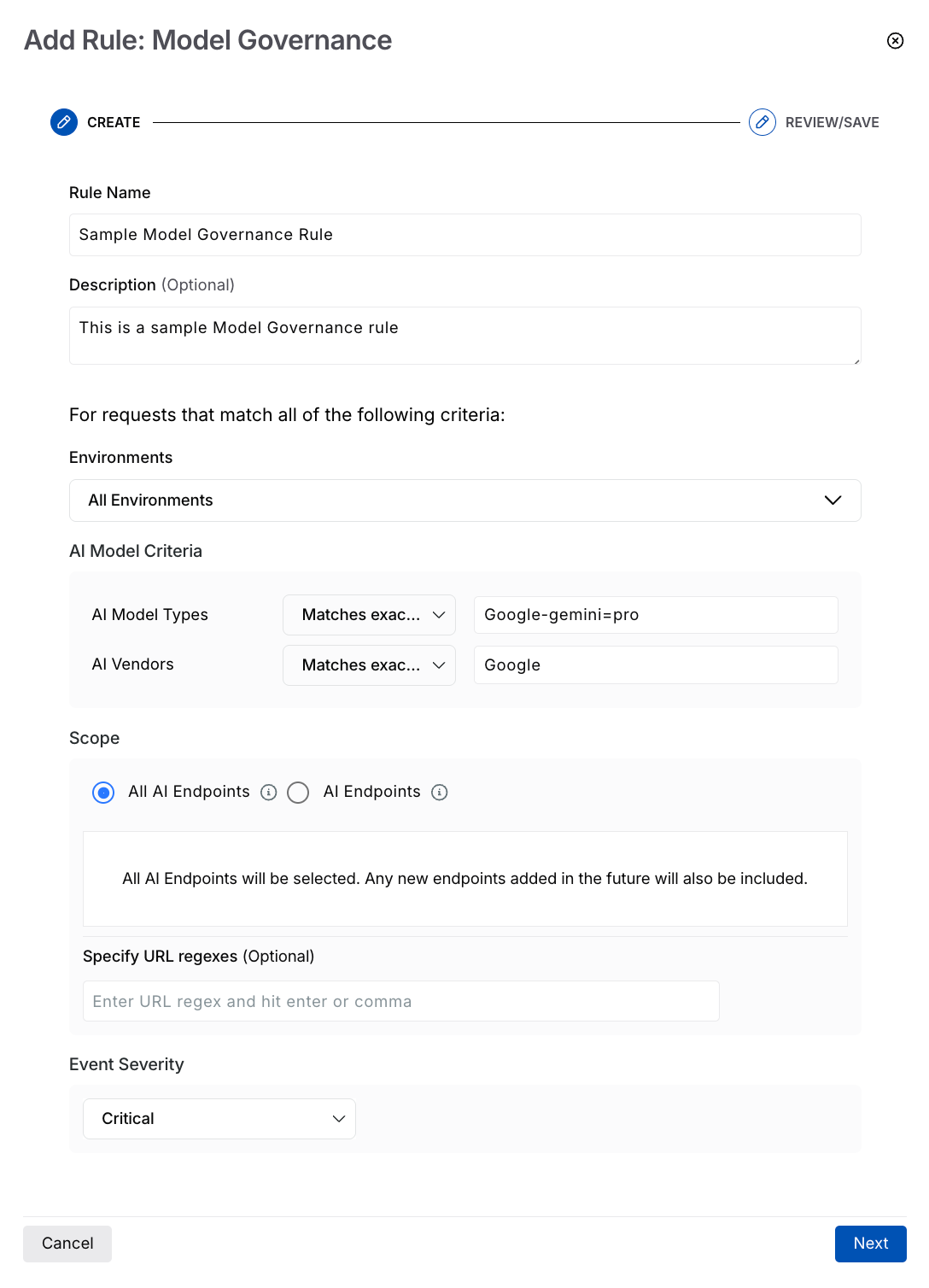
Model Governance Rule
Specify the Rule Name, for example, Sample Model Governance Rule.
(Optional) Specify a relevant Description summary.
Select the Environment(s) where you wish the rule to apply.
Select the AI Model Criteria based on which Traceable should apply the rule:
AI Model Types — The AI models based on their purpose or functionality.
AI Vendors — The provider or platform behind each AI model or service.
Traceable provides the following operators that you can select from, for the above criteria:
Any values — Includes all available values in the rule.
Matches exactly — Includes the value(s) you specify.
Does not match exactly — Includes all value(s) except the ones you specify.
Contains string — Includes the value(s) that contain the string you specify.
Does not contain string — Includes all value(s) except the ones containing the string you specify.
Matches pattern — Includes all value(s) matching the pattern you specify.
Note
Traceable performs an AND between the criteria above.
The values you specify for the above criteria are case-sensitive.
Select the Scope (All or specific AI endpoints) where you wish to apply the rule.
(Optional) Specify URL Regexes if you wish to include specific API endpoints.
Select the Event Severity you wish to apply to the identified event.
Click Next.
Review the details you specified above, and click Submit.
To add a new rule for AI Sensitive Data Protection, complete the following steps:
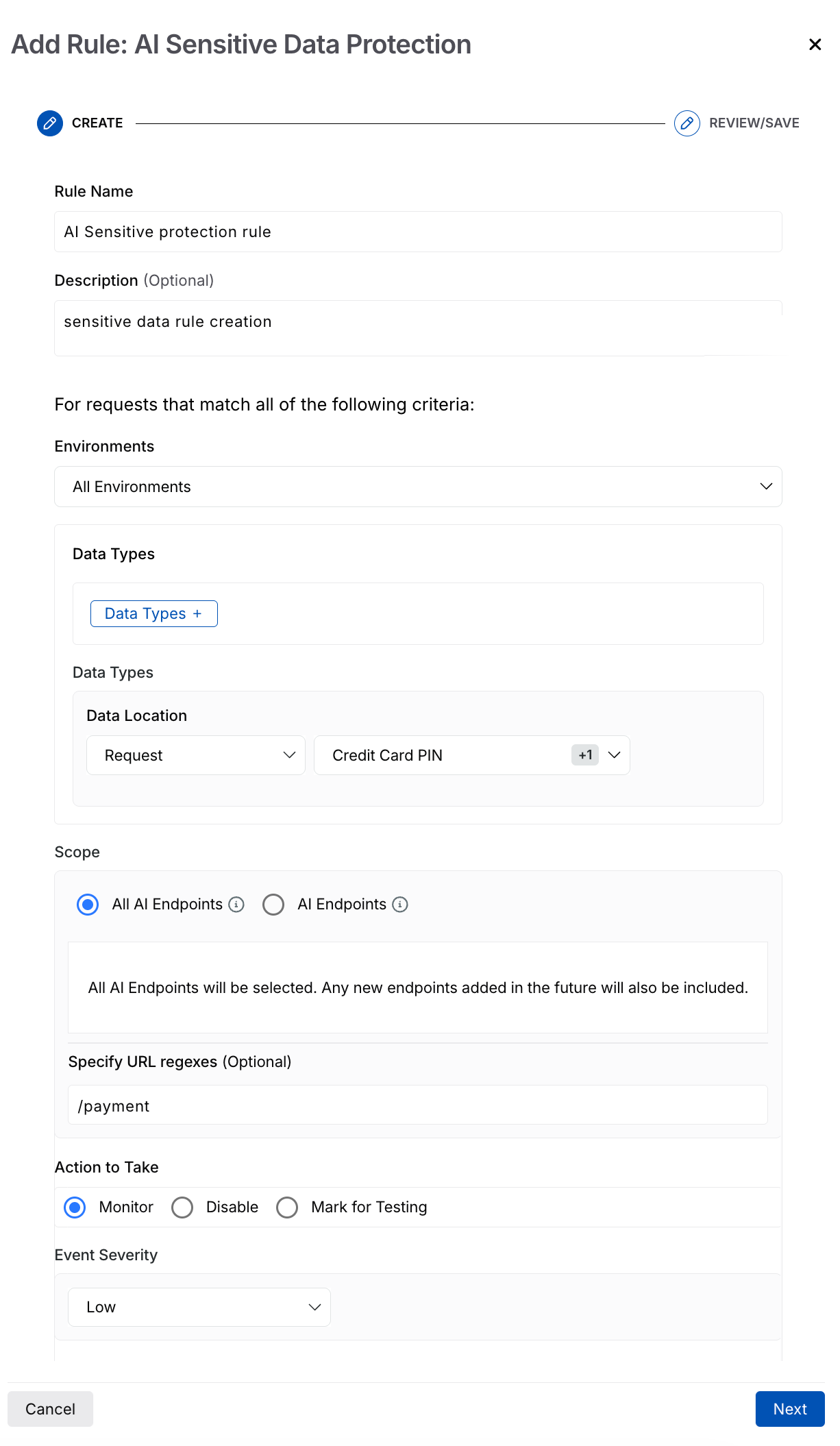
AI Sensitive Data Protection Rule
Specify the Rule Name, for example, Sample AI Sensitive Protection Rule.
(Optional) Specify a relevant Description summary.
Select the Environment(s) where you wish the rule to apply.
Select the Data Types that Traceable should check for in the prompt.
Select the Scope (All or specific AI endpoints) where you wish to apply the rule.
(Optional) Specify URL Regexes if you wish to include specific API endpoints.
Select the Action to Take for your rule, for example, Disable, Monitor, or Mark for Testing.
Select the Event Severity you wish to apply to the identified event, for example, Low, Medium.
Click Next.
Review the details you specified above, and click Submit.
AI policy management
Policy management in Traceable follows a hierarchical structure, enabling or disabling policies at the environment or granular level. You can manage components within the AI Firewall policy tab at the following levels:
.png)
AI Policy Management
Environment Level — You can select the environment from the page’s top right corner and enable or disable the policy from the Status drop-down at the top of the tab. This enables or disables all threat types collectively on the selected environments.
Threat Type Level — You can use the Toggle next to the threat type to enable or disable the threat rules under it. This enables or disables all the threat rules under it.
Threat Rule Level — You can use the Action drop-down corresponding to a threat rule to enable (Monitor), disable (Disable), or mark it for testing (Mark for Testing).
While enabling the AI Firewall policies at the environment level enables all threat types, you can also enable or disable the individual threat types or rules according to your requirements. Similarly, when you enable a threat type, you can manage the rules independently.
Note
Any change at either of the above levels in All or specific environments is called an override. For more information, see Understanding Overrides.
Actions on AI policies
Traceable allows you to carry out various actions on the threat rules available in the following threat types:
AI Sensitive Data Protection
Model Governance
AI Rate Limiting
AI Input Explosion
The following table explains the actions you can perform on the pre-defined and custom threat rules:
Action | Description |
|---|---|
View | View the rule details without modifying them. |
Edit | Modify the details specified in the rule. |
Reset (pre-defined rules only) | Reset the rule to the default configuration specified by Traceable. |
Delete (custom rules only) | Delete the rule.
|