Updates (April 2026 to June 2026)
June 2026 — Updated the topic to add information about the recommended entity type. For more information, see Entity types.
An Entity in Bot Protection enables you to either use default or derive custom entities from the traffic and use them for Protection policies. While Traceable provides standard fields under the recommended section, such as user agent, device, and OS, you define a custom entity whenever you need to aggregate on a field not included in the standard set. It allows you to unify data across different APIs or request formats, ensuring consistent visibility for security and analytics. It works similarly to user attribution by extracting and standardizing values from API traffic for use across policies and analytics. These entities are used directly within Bot and Abuse Protection policies to define how traffic is classified, evaluated, and acted upon, using both standard and custom-extracted attributes. For more information, see Bot and Abuse Protection Policies.
What will you learn in this topic?
By the end of this topic, you will be able to:
Understand the role of entities in Traceable.
Identify when to use custom entities beyond standard attributes.
Define entities to extract application-specific data from requests.
Before you begin
Before you proceed to create an Entity, make a note of the following:
Make sure you have the Settings RBAC permissions under Module Level Access → API Protection to create the rules. For more information, see Team and roles - RBAC.
Understand entities
Entities help you standardize and extract application-specific data that is not available through default attributes. This improves how Traceable aggregates and applies policies across APIs, especially when the same data appears in different formats, locations, or request structures. The following table explains when to use entities, why they are needed, and how you can leverage them effectively:
Why use it? | When to use? | How can you leverage it? |
|---|---|---|
Entities standardize how application-specific data is extracted across APIs, so the same information can be analyzed consistently even when it appears in different formats or locations. | Entities give you the control to define what data Traceable tracks and how it responds to suspicious traffic patterns. You can use these when important fields, such as user IDs or email addresses, are missing from standard attributes or appear differently across endpoints. | You can use the pre-defined entities or define custom entities with multiple extraction paths and a clear priority order to unify data. Use them in policies to improve detection accuracy and maintain consistent visibility across your APIs. |
Entity types
Entities help you extract, standardize, and use application-specific data across policies and analytics. Traceable provides two types of entities:
Recommended — The default or preferred entities for common use cases.
Custom — The derived entities for extracting data specific to your applications and APIs.
The following tabs describe each entity type and its capabilities:
The Recommended entity tab lists the default or pre-defined entities available for use. You can use these without any configuration.
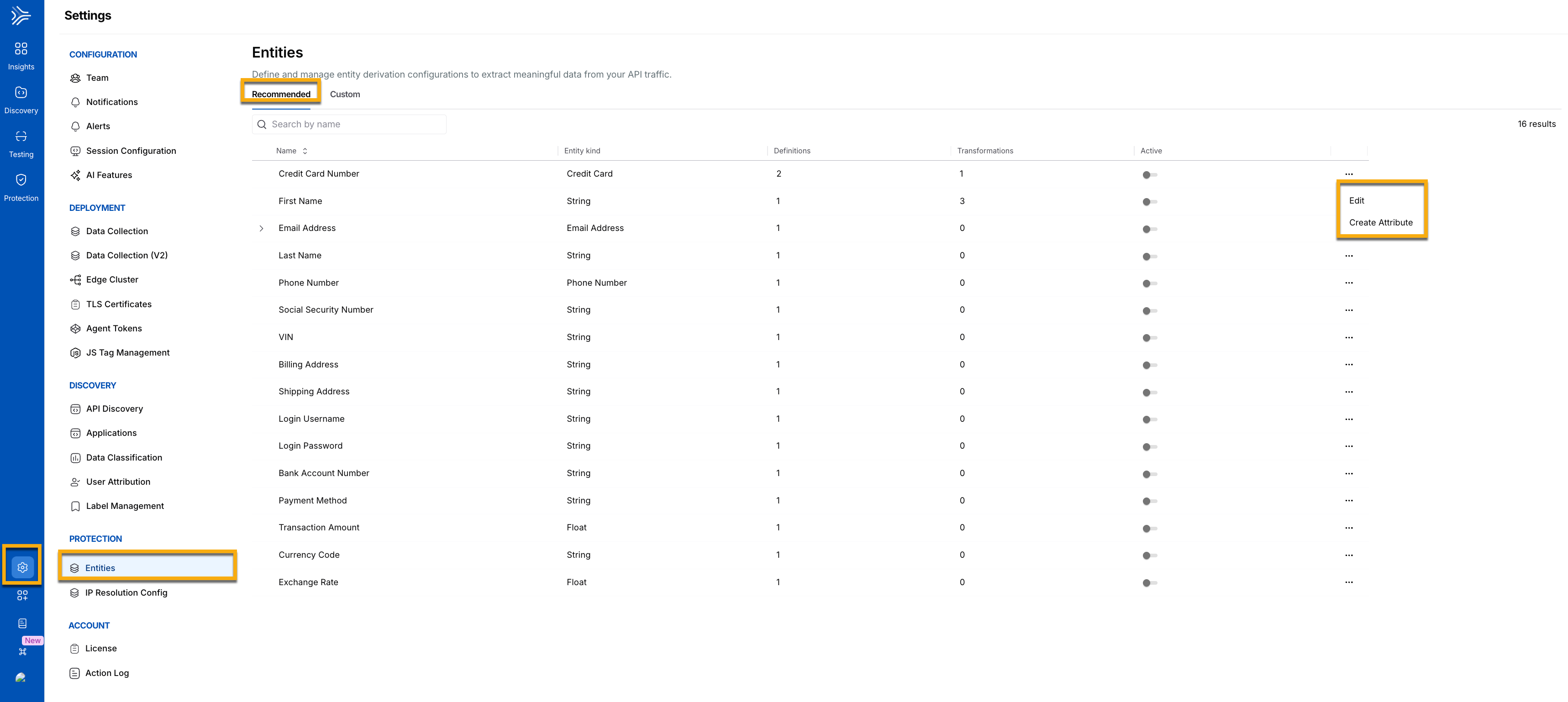
Recommended Tab Entity
The Recommended tab highlights the following metrics:
Name — The standard name of the entity, for example, First Name.
Entity kind — The type of entity, for example, String.
Definition — The number of times it has been defined.
Transformation — The count of transformations done on the chosen entity.
Active — The toggle indicates whether a particular entity is active and available for use.
Ellipse (
.png) ) icon — You can perform the following actions on the entities:
) icon — You can perform the following actions on the entities:Edit — You can edit the existing entity and add filters, change targets, or add transformations for your existing entity to make it more usable.
Create Attribute — You can create a child attribute from an existing entity to extract more actionable values using transformation functions. This helps you derive additional context from already extracted data without creating a new entity from scratch. However, you cannot delete the recommended entity, unlike the custom entity.
In addition to the pre-defined recommended entities, you can create your own custom entity according to your requirements. To create a custom entity, navigate to Settings → Entities → Custom. Under the Custom tab, click + Create Entity.
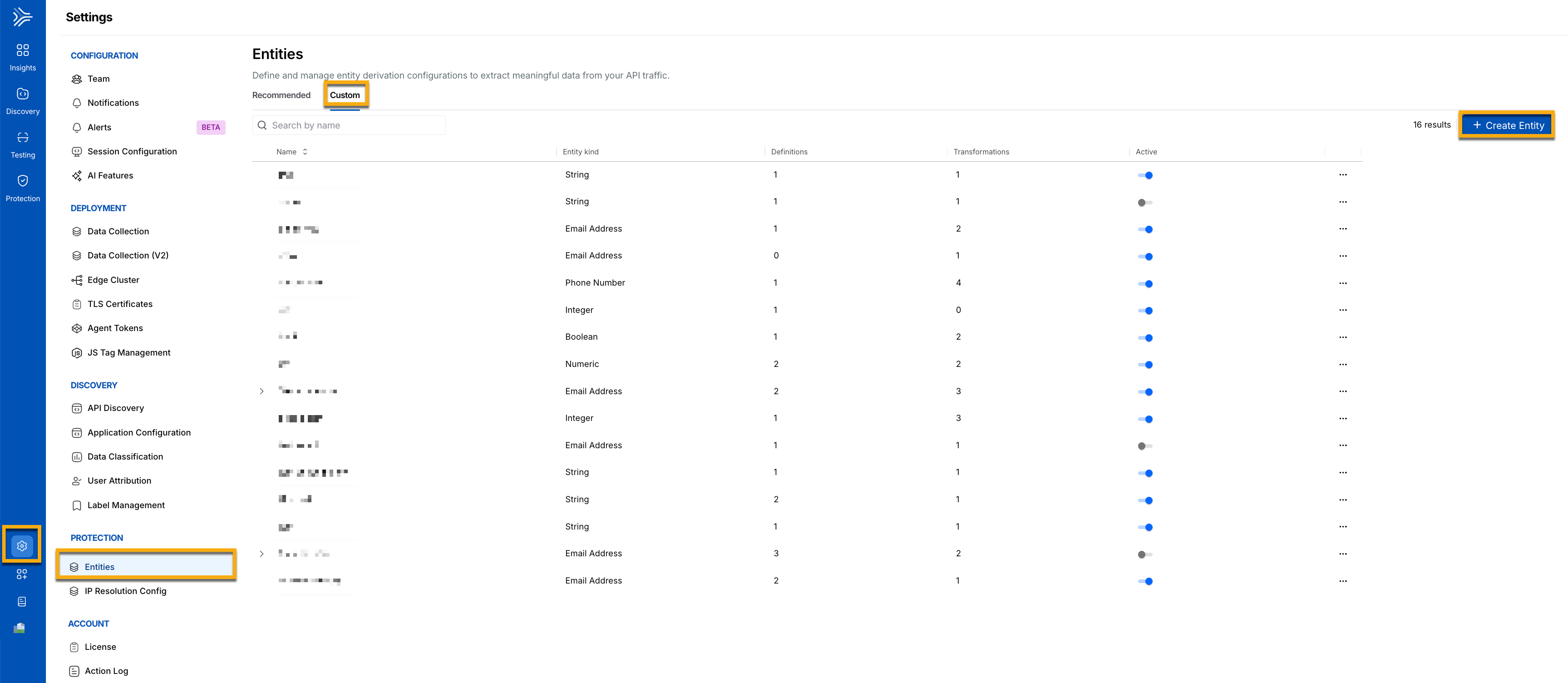
Create Entity
In the Create Entity slide-out panel, complete the following steps:
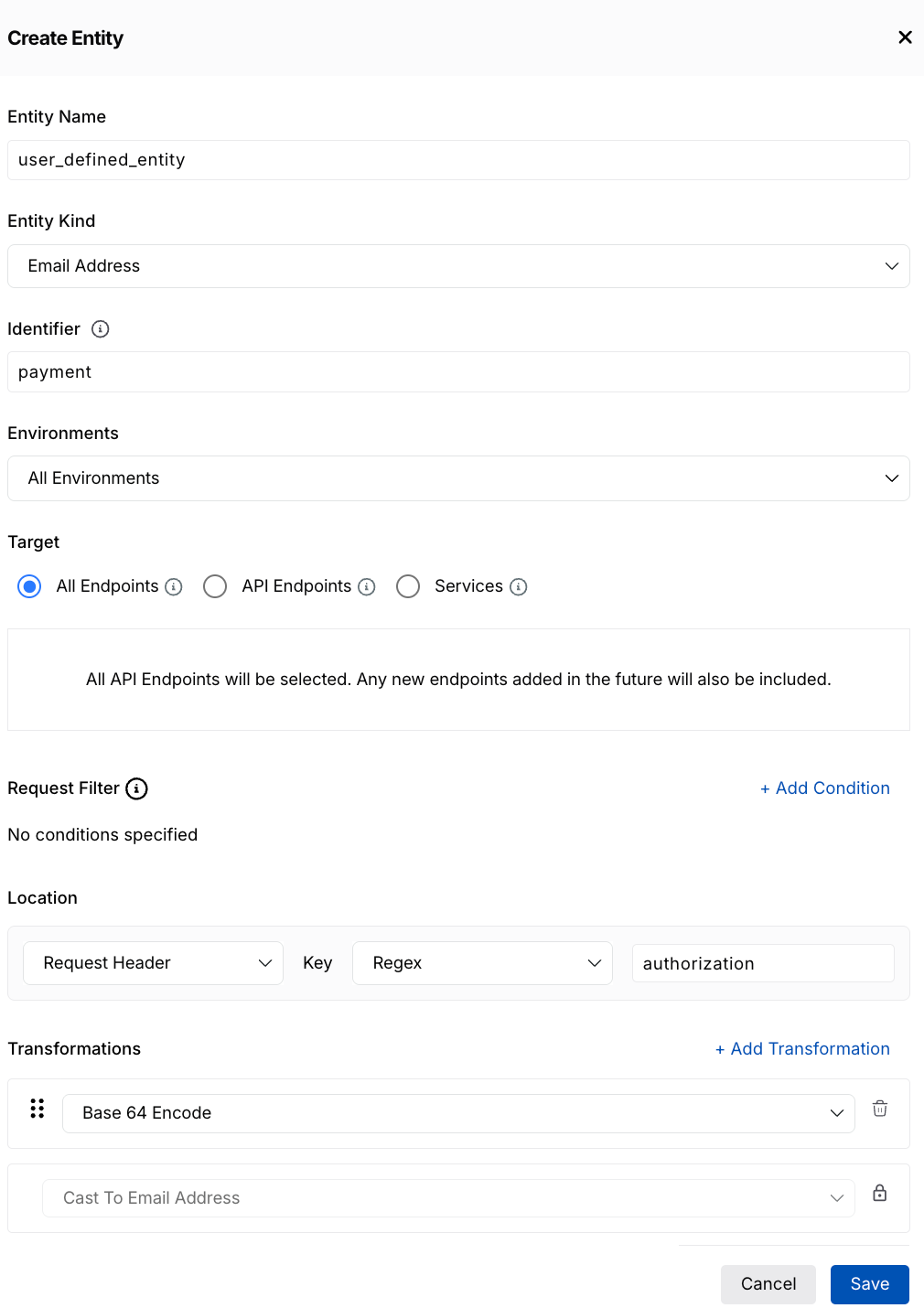
Create Entity
Rule name — A name that describes what this rule detects, for example, user_defined_entity.
Entity kind — The data type of the value you are extracting. The type you select determines which transformation functions Traceable can apply to it, for example, String, Integer, or Email Address.
Identifier — A reference label for this entity, for example, payment.
Environments — The environment or environments where Traceable applies this entity, for example, All Environments.
Target — The scope of API traffic from which Traceable uses this entity. The following table describes the available targets:
Target
Description
All Endpoints
Apply the rule to all endpoints within the selected environments.
API Endpoints
Apply the rule to specific API endpoints. This allows granular control at the endpoint level.
Services
Apply the rule to one or more specific services. You can search or filter services based on your requirements.
Request Filter (Optional) — The filtering request attributes to help you extract your required data. Click + Add Condition to add a filter. The following table shows the available fields:
Component
Description (with examples)
Attribute Scope
Defines the data source within the HTTP transaction, for example, the Request Header, such as Authorization.
Key
Specifies the exact field inside the selected scope to evaluate, for example, the user identifier or the content type.
Operator
Defines how comparison is performed, for example, Equals, Not Equals, Greater Than
Value
Value used for evaluation against the key, for example, success, administrator, application JSON type.
Location — Defines where Traceable should look within API traffic to extract the entity value and how it should identify the field using match rules, such as Regex, Prefix, or Contains. The following table describes the fields used to configure the extraction location and matching logic for a custom entity:
Field
Description
Available Options
Source
The attribute location where Traceable extracts the value from the API traffic.
Request Header — Matches values from HTTP request headers sent by the client.
Response Header — Matches values from HTTP response headers sent by the client.
Request Body — Matches values from the API request payload.
Response Body — Matches values from the API response payload.
Request Cookie — Matches values stored in cookies sent with the request.
Response Cookie — Matches values stored in cookies sent with the response.
Match operator
Defines how Traceable matches the specified key.
Matches Exactly — The key must match character-for-character. Use this for stable, well-known field names.
Matches Regex — The key matches a regular expression pattern. Use this when field names are dynamic or follow a naming convention.
Prefix — The key must start with the specified value.
Contains — The key must contain the specified value anywhere within it.
Key
The field name or path Traceable extracts from the selected source.
The field name to extract, for example, email ID. For deeply nested structures, use JSON path notation to access embedded fields without requiring an additional transformation step, for example, Email ID, sample@email.com.
Transformations (Optional) — Applies a sequence of processing steps to the extracted value to refine and decode it into the required format for consistent use across policies and analytics. It allows you to extract specific portions of raw data through a sequence of processing steps, ensuring the final value is in the format required for your use case. To add a transformation, click + Add Transformation. By default, Traceable transforms the entity into its corresponding entity kind type.
After verifying all the fields, click Save.
Transformation function support matrix
The following table lists the entity kind and supported transformation functions in detail:
Transformation Function | Entity Kind | Description | Example |
|---|---|---|---|
Regex Match | String, Email Address, Phone Number, Credit Card | Extracts a substring that matches a regex pattern from raw input values. | Extract the token from the Bearer token, or the last digits. |
Split | String, Email Address, Phone Number, Credit Card | Splits a value by a delimiter and returns a specific part based on index. | Split name@domain.com on @ to extract components. |
Substring | String, Email Address, Phone Number, Credit Card | Extracts a portion of a value based on position or range. | Extract the first 5 characters from sample_string. |
To Lower Case | String, Email Address, Phone Number, Credit Card | Converts text to lowercase for normalization. | Normalize userdomain@com to a consistent format. |
To Upper Case | String, Email Address, Phone Number, Credit Card | Converts text to uppercase for standardization. | Convert content-type to consistent uppercase format. |
Trim | All Entity Kind | Removes leading and trailing whitespace from extracted values. | Clean input like user@example.com. |
Replace | All Entity Kind | Replaces matching substrings with a new value for masking or normalization. | Mask sensitive value like 4111 1111 1111 1111. |
Parse JSON | String, Email Address, Phone Number, Credit Card, Numeric, Integer, Float | Parses JSON payload into a structured format for field extraction. | Extract fields from the user profile JSON payload. |
Get JSON Path | String, Email Address, Phone Number, Credit Card, Numeric, Integer, Float | Extracts values using JSON path expressions from structured payloads. | Extract user.id from the request payload. |
Base64 Encode | String, Email Address, Phone Number, Credit Card, Numeric, Integer, Float | Encodes values into Base64 format for safe transmission. | Encode payload data before sending to the downstream service. |
Base64 Decode | String, Email Address, Phone Number, Credit Card, Numeric, Integer, Float | Decodes Base64 encoded values into a readable format. | Decode JWT payload from the authorization header. |
URL Encode | String, Email Address, Phone Number, Credit Card, Numeric, Integer, Float | Encodes values for safe URL transmission. | Encode query value like a user email parameter. |
URL Decode | String, Email Address, Phone Number, Credit Card, Numeric, Integer, Float | Decodes URL-encoded values into original form. | Decode query string parameters. |
Cast (Identity Types) | Email Address, Phone Number, Credit Card | Converts raw string into structured identity formats. | Convert raw input into an email or phone identifier. |
Cast (Numeric Types) | String, Email Address, Phone Number, Credit Card, Numeric, Integer, Float | Converts values into numeric representations. | Convert the order amount string into a numeric value. |
Cast (Boolean) | All Entity Kind | Converts values into a Boolean true or false representation. | Convert yes or no into a boolean. |
Cast (Timestamp) | String, Email Address, Phone Number, Credit Card, Numeric, Integer, Float, Timestamp | Converts values into timestamp format. | Convert 2026-05-15 10:30:00 into a timestamp. |
Cast (IP Address) | String, Email Address, Phone Number, Credit Card, IP Address | Converts values into IP address format. | Normalize the request IP value. |
Cast (Mac Address) | String, Email Address, Phone Number, Credit Card, IP Address | Converts values into MAC address format. | Normalize device MAC address. |
Cast (Network Identifier) | String, Email Address, Phone Number, Credit Card, IP Address, Mac Address, Network Identifier | Converts values into network identifier format. | Standardize device or network ID. |
After you create the custom entities, you can use them in Bot Protection policies to build more granular aggregation logic, improve detection accuracy, and enforce application-specific protections. For more information, see Bot and Abuse Protection Policies.
Actions on entities
You can perform the following actions on both custom and recommended entities by clicking the ellipse icon ():
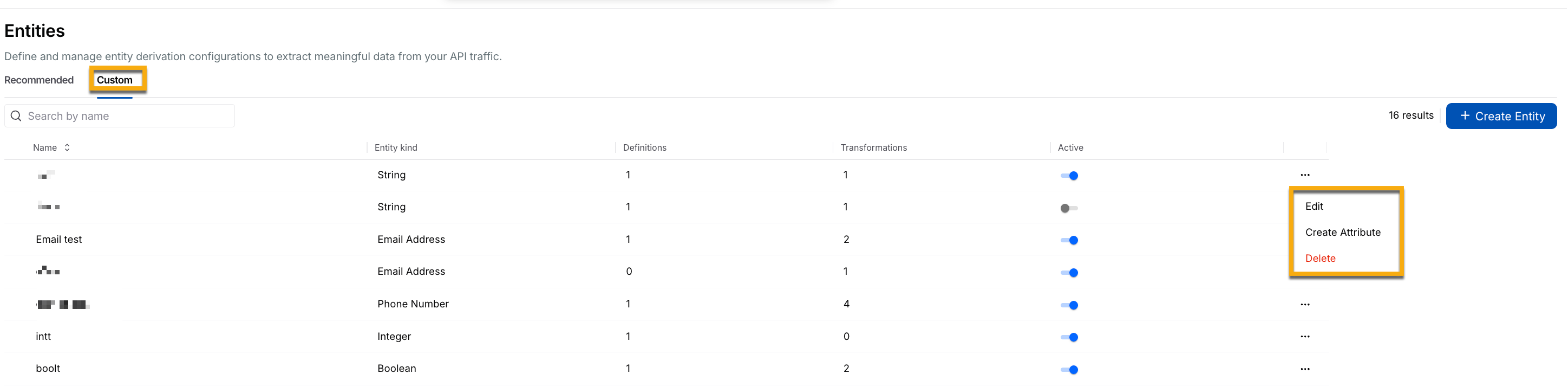
Custom Entity Actions
Active — You can enable or disable the entity using the toggle in the Active column, according to your requirements.
Edit — You can edit the existing entity and add filters, change targets, or add transformations for your existing entity to make it more usable.
Create Attribute — You can create a child attribute from an existing entity to extract more actionable values using transformation functions. This helps you derive additional context from already extracted data without creating a new entity from scratch. Once created, this attribute is automatically populated in the target field dropdown across policy configurations and workflows that support custom entities. You can use child attributes to refine values, apply further transformations, create filters and detections, or build additional derived entities, using the following fields:
Attribute Name — A name for your attribute, for example, custom_attribute_1.
Entity Kind — The type of entity that you wish to configure for this attribute. The available transformation functions depend on the entity kind you select, for example, String.
Transformations — A sequence of steps to modify your span attribute to extract actionable data, according to your requirements.
.png)
Create Attribute
Delete — You can delete the custom entity.
Note
You cannot delete an entity from the recommended tab since it is available by default.
A deleted entity cannot be restored.