Service accounts provide a secure way for applications, integrations, and automated workflows to access Traceable. As you scale your integrations and automation, you can enforce least-privilege access by assigning specific roles and environment-level permissions to each automated process. This ensures that integrations and external systems receive only the access required to perform their intended tasks, while maintaining consistent security and operational control across the Traceable platform.
What will you learn in this topic?
By the end of this topic, you will be able to:
Understand why service accounts exist and their needs.
Understand the key capabilities of a service account.
Understand the steps to create a service account.
Understand how to generate and manage access tokens.
Understand the service account
Before you create a service account, make sure you understand the need for one. The following table explains why, when, and how you can leverage it:
Why use it? | When to use? | How can you leverage it? |
|---|---|---|
It helps you securely manage access by providing dedicated identities for integrations and automation workflows. They reduce reliance on shared credentials and support least-privilege access controls. | You can use it whenever you need to access tokens for role and scope-specific actions, such as ticketing systems and reporting. | You can navigate to the service accounts tabs and assign roles and environment scopes to each Service Account based on your operational requirements. |
Key capabilities
Service accounts provide dedicated identities for these workflows, helping you and your team securely manage access, assign only the required permissions, and maintain clear separation between automated processes and user accounts. The following table describes the capabilities available for configuring and managing service accounts:
Capability | Description |
|---|---|
Create a service account | Create dedicated machine identities for automation workflows, integrations, deployment pipelines, reporting systems, and custom tooling. This eliminates the need for access Tokens for automated access. |
Assign roles and permissions | Control what actions a service account can perform by assigning an appropriate role. Access tokens generated for the service account inherit these permissions, ensuring automated processes operate within clearly defined boundaries. |
Configure environment-level scope | Restrict service account access to specific environments. This allows you to limit automation to only the resources it requires, helping enforce least-privilege access and reduce unnecessary exposure across environments. |
Generate and regenerate access tokens | Create access tokens for machine-to-machine authentication and regenerate them when credentials need to be rotated or replaced. This helps maintain secure integrations and supports organizational credential management practices. |
Update access as requirements evolve | Modify roles and environment scope as automation workflows change. This flexibility allows organizations to adapt access controls without recreating integrations or disrupting operational processes. |
Delete unused service accounts | Remove service accounts that are no longer required to reduce credential sprawl, maintain a clean access model, and strengthen overall security posture. |
Together, these capabilities enable you to securely manage automated access, establish clear ownership boundaries, and scale integrations without relying on user-based credentials. The following sections discuss service account creation and management in detail.
Steps to create a service account
Unlike user accounts, Service Account does not support interactive sign-in and exists solely for token-based authentication. By assigning role-based permissions and environment-specific access, you can ensure that automated processes operate within clearly defined access boundaries. To create a service account, navigate to Settings → Team → Service Accounts tab. Click +Create Service Account.
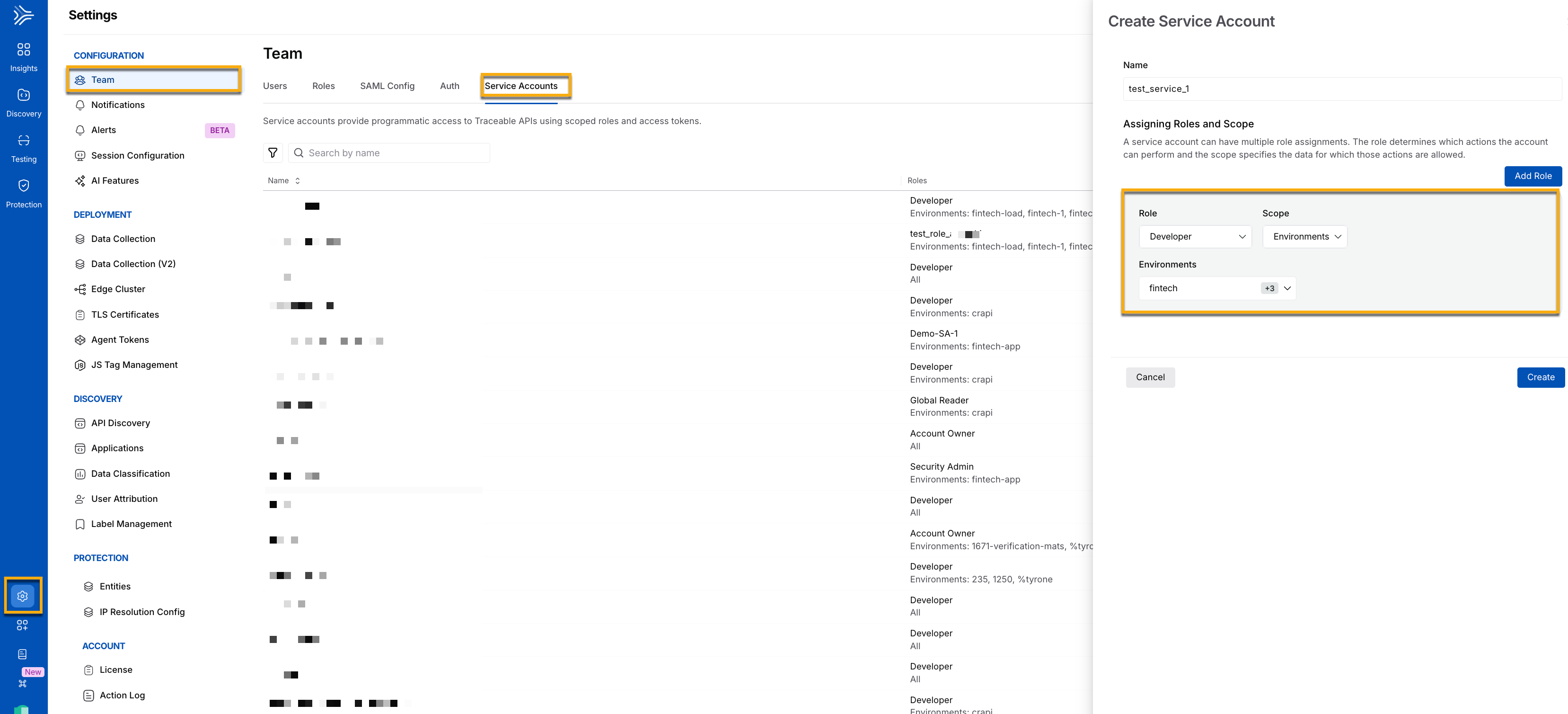
Create Service Account
In the Create Service Account, slide-out panel, complete the following steps:
Name — A name for your service account, for example, test_service_1.
Role — A role associated with your service account. You can choose the roles from the drop-down according to your requirements. For example, you can add the role of an Account owner with scope access to all environments. You can provide multiple roles by clicking Add Role. For example, you can also provide role access as a Developer or a Security Analyst with scope limited to specific relevant environments, such as Fintech.
Scope — The scope of the role that you have chosen above, whether it has access to All environments or only to specific environments, for example, Fintech.
Environments — A list of all the available environments. You can choose one or more environments, according to your requirements.
Click Create.
Generate access tokens
To generate an access token, click the service account you have created above. In the open slide-out panel, specify the Token Label, then click Generate Token.
.png)
Service Account Token Generation
Note
When you click Generate Token, Traceable generates a unique token that you must copy and store for future use as it is only visible at the time of token creation.
Additionally, you can also add multiple tokens using the +Add Token button, according to your requirements.
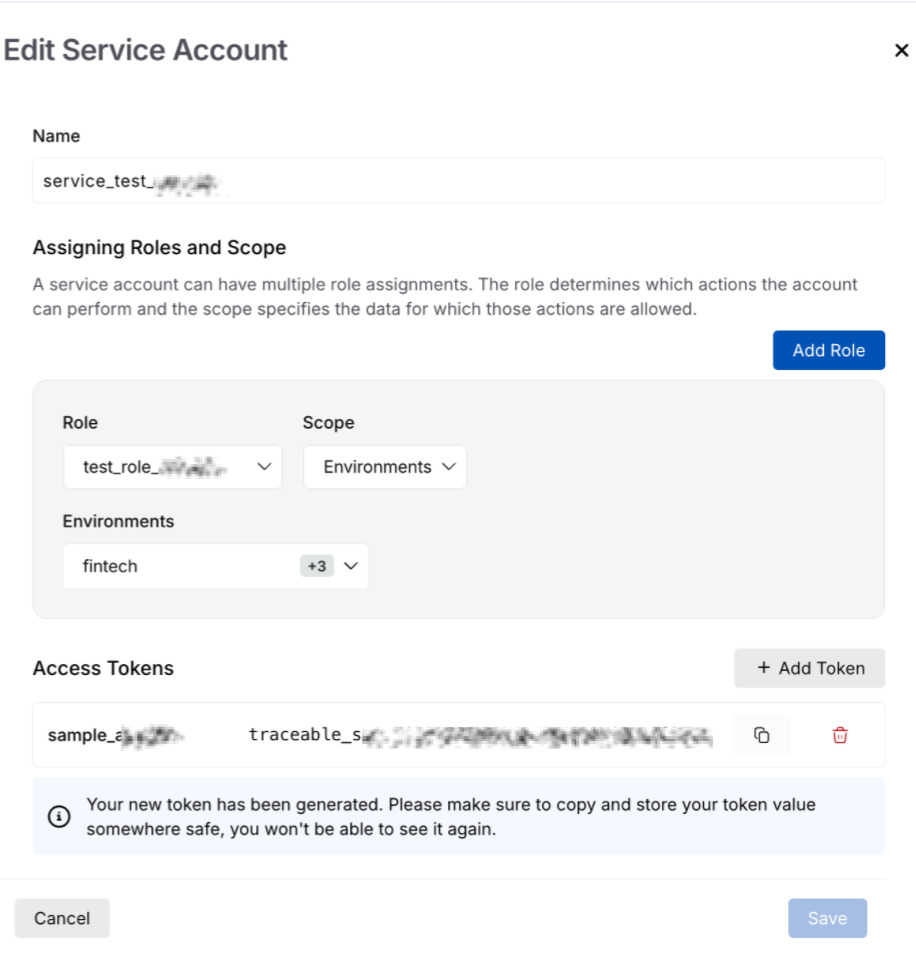
Accessing Tokens
Manage service accounts
After you have created your account, you can view them on the Service Accounts tab page. The page shows the following metrics:
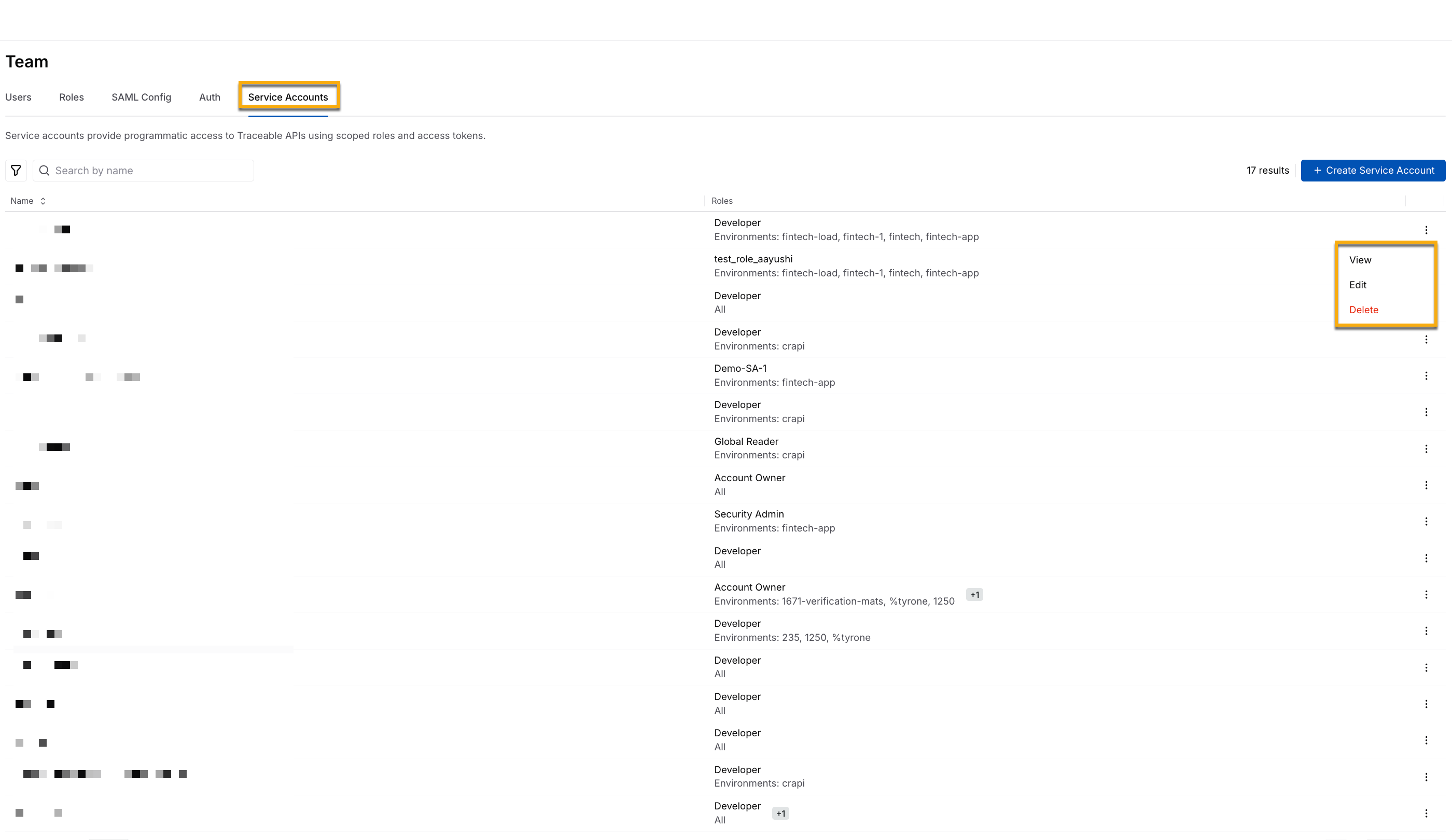
Manage Service Accounts
Name — An identifiable name associated with the service account that you created above.
Roles — The roles associated with your service account.
Ellipse (
 ) icon — You can perform the following actions on the service account you have created above:
View — View the account and associated role(s), scope, and access tokens.
Edit — Edit the account and associated role(s), scope, and access tokens.
Delete — Delete the account and associated role(s), scope, and access tokens.
Note
You cannot restore a deleted service account.
Demo
The following interactive demo walks you through the steps to navigate, create, and manage service accounts in Traceable: