Data Loss Prevention (DLP) rules help you protect sensitive data exposed through APIs by enforcing granular access controls and monitoring suspicious access activity. You can use DLP rules to control who can access data, what type of data can be accessed, how frequently data can be accessed, and what action Traceable should take when suspicious behavior occurs. DLP rules help you implement zero-trust protection strategies for APIs by combining traffic attributes, payload sensitivity, access behavior, and enforcement actions into a single policy.
What will you learn in this topic?
By the end of this topic, you will be able to:
Identify when to use DLP rules to protect sensitive data.
Create and configure DLP rules for your organization.
Manage and apply actions to existing DLP rules.
Understand DLP rules
Before you configure DLP policies, it is important to understand how they help detect and prevent sensitive data exposure across your APIs and applications. The following table explains when to use DLP, why it is critical for closing data protection gaps, and how it strengthens your security and compliance posture with greater visibility and control:
Why use it? | When to use it? | How can you leverage it? |
|---|---|---|
It enables you to detect, monitor, and safeguard sensitive data exposed via applications and APIs by analyzing request and response traffic, including payloads, headers, parameters, URLs, user behavior, and access patterns. | You should use DLP rules when applications or APIs handle sensitive information, such as PII or financial data. They are useful for monitoring suspicious access behavior, detecting excessive data retrieval, identifying bot or VPN-based activity, enforcing environment-specific access policies, and protecting sensitive API operations from unauthorized exposure or misuse. | Create a rule by defining the protection objective, detection criteria, and target scope. Configure the action, define the traffic and access conditions, specify the data inspection or matching logic, and select the services, applications, or endpoints to which the rule applies. |
Before you begin
Before you proceed to create the rules, make a note of the following:
Make sure you have the Settings RBAC permissions under Module Level Access → API Protection to create the rules. For more information, see Team and roles - RBAC.
Make sure you understand payload matching DLP rules in Traceable . For more information, see Understand payload match.
Make sure that the sensitive data is classified. For more information, see Sensitive Data.
Steps to create a DLP rule
To create a DLP rule in Traceable, navigate to Protection → Settings → Policies → Custom Policies, Data Loss Prevention tab, and click + Add Rule in the top right corner to start creating a rule. You can create the rule using the following four steps:
Define the intent — Specify the rule name, environment, and enforcement action to determine how Traceable processes match traffic.
Configure the policy conditions — Set the request limits and thresholds that trigger the rule based on traffic behavior.
Set the criteria — Specify the conditions traffic must meet, including source, payload components, and target scope.
Review and save — Validate the configured settings and submit the rule for activation.
You can also create rules for existing users by navigating to Protection → Data protection. The Data Protection page provides preconfigured settings and recommendations to help you create policies more efficiently. For more information, see Data Protection.
Step 1 — Define the intent
To define the intent of the rule, you must complete the following steps:
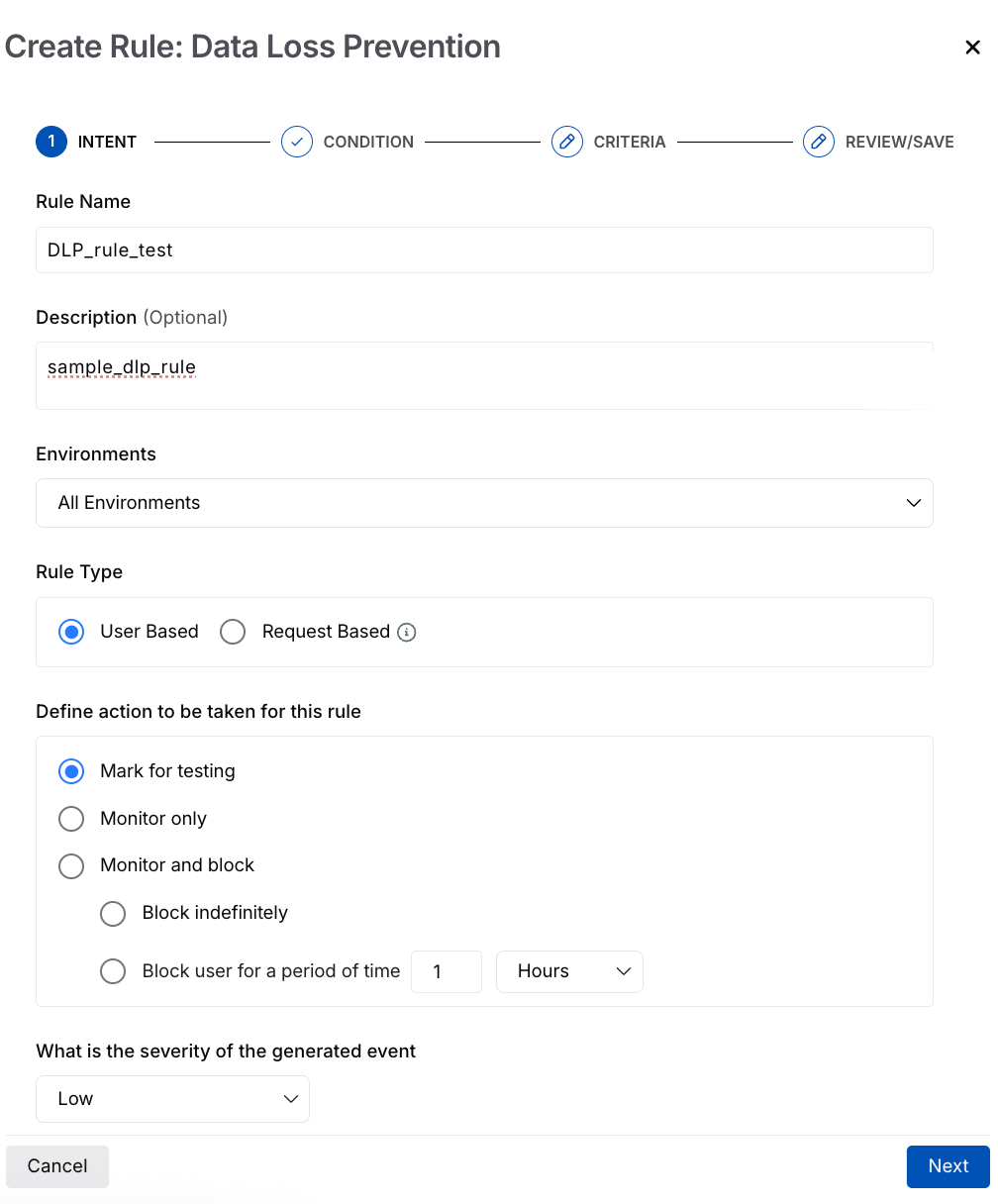
DLP Intent
Rule Name — A unique and identifiable name for the rule, for example, DLP_rule_test.
Description (Optional) — A summary of the rule’s purpose, for example, sample_dlp_rule.
Environment — The environment in which Traceable should apply the rule, as per your requirements, for example, All Environments.
Rule type — The type of DLP rule that you want to create:
Rule Type
Description
When to select which rule type
User Based
Evaluates activity associated with individual users.
Use this when reliable user identifiers are available.
Request Based
Evaluates requests independently without relying on user identity. If you choose this rule type, Traceable evaluates requests independently.
Use this when requests do not contain reliable user identity information.
Note
Configure policies with clear matching criteria to achieve faster enforcement. Complex conditions can delay evaluation. After the system detects a violation, it may take a few minutes to apply the configured action.
Define action to be taken for this rule — The action you can take to handle the event generated by the rule. The following table shows the different actions available:
Action
Description
Mark for testing
Tests the rule without impacting traffic. Generates low-severity events and does not send notifications.
Monitor only
It monitors activity and generates events.
Monitor and block
Monitors matching activity and applies the configured blocking action when requests meet the rule criteria.
Block indefinitely — Blocks the user when they meet the defined criteria, preventing any further API requests.
Block user for a period of time — Blocks the user for the same duration as the defined time range.
Note
Traceable currently supports blocking actions only through the Inline Traceable Agent. For more information, see Traceable deployment.
What is the severity of the generated event? — The severity that Traceable should assign to the event generated by the rule, such as Low, High, Medium, or Critical.
Click Next to continue.
Step 2 — Configuration based on rule type
The following tab discusses the availability of different conditions and criteria based on the rule type you select in the intent section above:
If you have selected the user-based rule type in the intent section above, Traceable provides you with the following options:
Step 1 — Configure the policy conditions
Traceable provides multiple condition types to help you define when a DLP policy should trigger. You can use these conditions to control how Traceable evaluates API traffic, detects abnormal access patterns, and monitors exposure of sensitive response data. You can configure the following condition types:
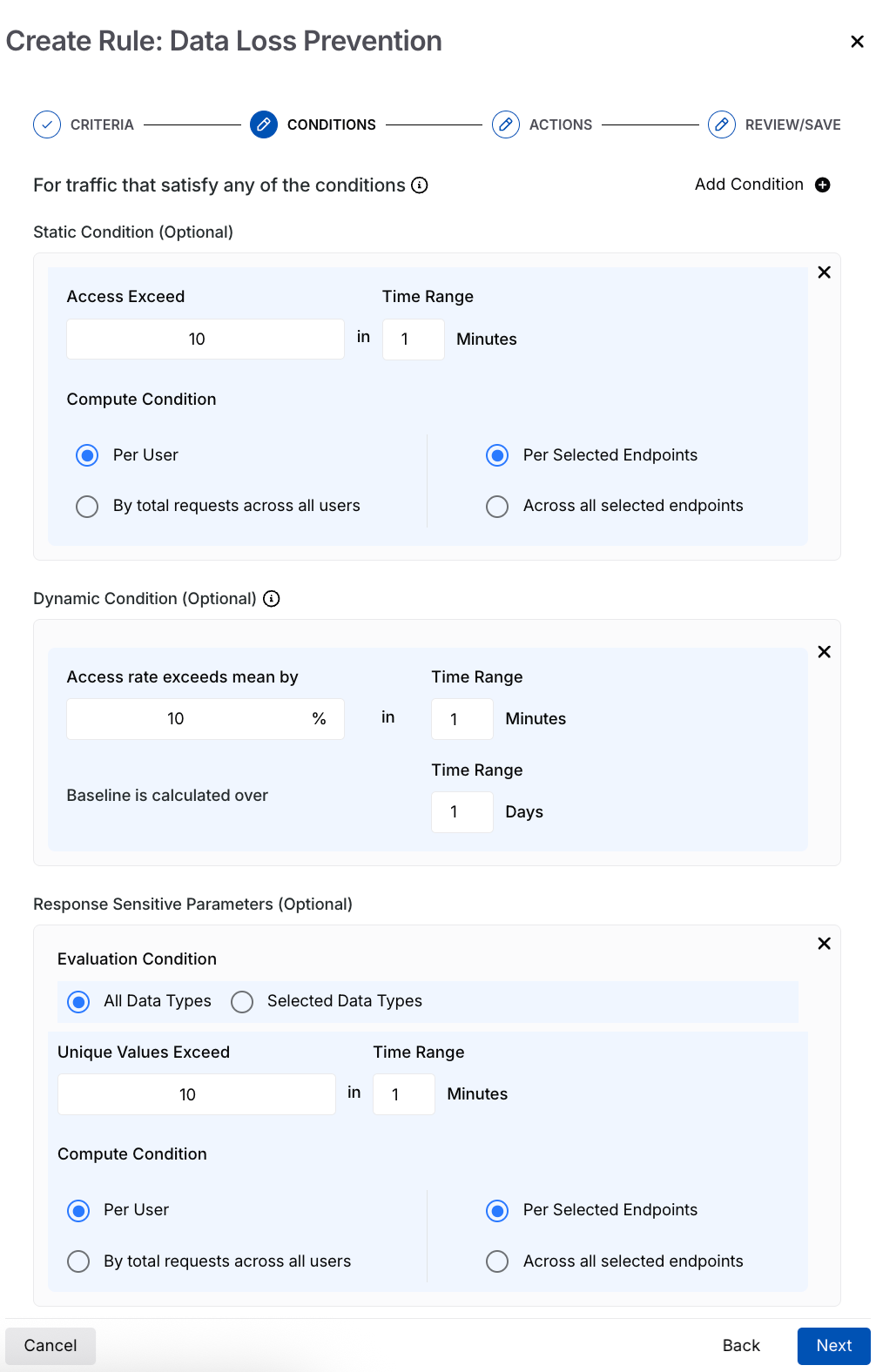
DLP conditions
Static condition (Default) — It applies fixed request thresholds to detect and control excessive API access activity.
Dynamic condition — It detects abnormal traffic patterns by comparing current API activity with a historical baseline.
Response-sensitive parameter condition — It monitors API responses for excessive access to unique sensitive data values and helps detect potential data exposure.
The following table describes the purpose, configuration parameters, and evaluation behavior for the above mentioned conditons types:
Parameter | Static Condition | Dynamic Condition | Response-Sensitive Parameters |
|---|---|---|---|
Purpose | Applies a fixed request limit based on configured values. | Adjusts request limits dynamically based on observed traffic patterns. | Detects excessive exposure of sensitive data values in API responses based on unique value thresholds. |
Access Threshold | Access Exceed — Number of requests allowed before Traceable applies the configured action, for example, 10 requests. | Access rate exceeds mean by — Percentage by which requests can exceed the baseline before Traceable applies the configured action, for example, 20%. | Unique values exceed — Number of unique sensitive values allowed before Traceable applies the configured action. |
Time Range | Evaluation window during which the request limit is calculated, for example, 10 requests within 1 minute. | Evaluation window during which the dynamically calculated limit is evaluated, for example, 120 requests within 1 minute when the baseline is 100, and the threshold is 20%. | Evaluation window during which unique sensitive values are counted, for example, 50 unique values within 1 minute. |
Baseline Calculation | Not applicable. | Baseline is calculated over — A historical period used to calculate baseline traffic, for example, 1 day. | Not applicable. |
Evaluation Conditions | Not applicable. | Not applicable. | All Data Types — Evaluates all detected sensitive data types in API responses. This is selected by default. Selected Data Types — Evaluates only explicitly selected sensitive data types. Available only when a response data type or dataset condition is configured in the rule criteria. |
Evaluation Scope | Compute Condition determines how unique sensitive values are grouped and counted across users and endpoints:
| Not applicable. | Compute Condition determines how unique sensitive values are grouped and counted across users and endpoints:
|
Step 3 — Set the criteria
To set the criteria, you must complete the following steps:
Note
The availability of the criteria (Source, Payload, and Target) below depends on the configurations you have selected in the Define the intent above.
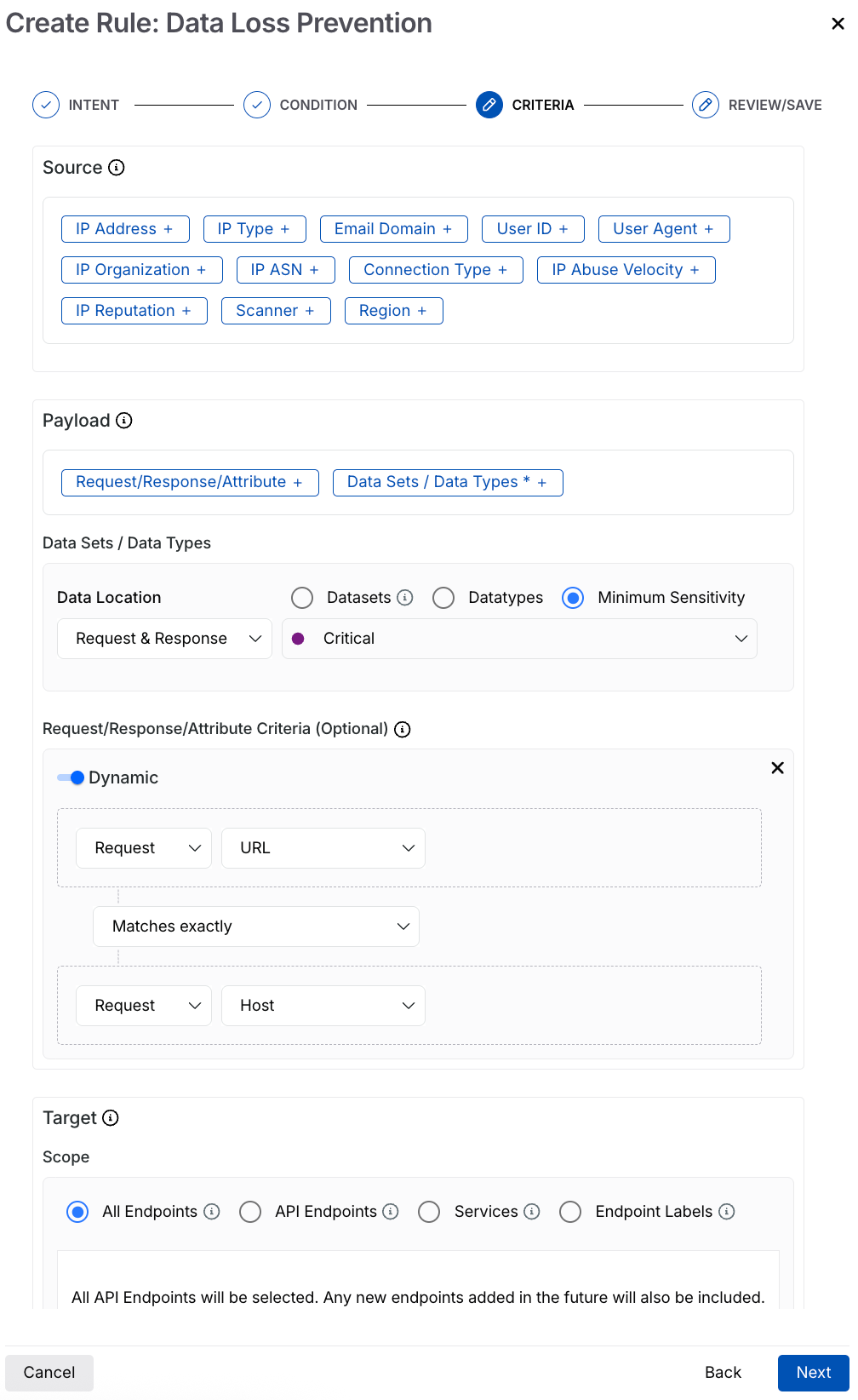
DLP Criteria
Source — The traffic conditions to which the rule applies (for example, IP Addresses → All external IPs). The following table describes the supported source types and their usage for creating a DLP rule:
Source Type
Description
IP Address
Limit traffic from specific internal or external IP addresses.
IP Type
Control usage based on IP types, such as Anonymous VPN, Bot, Scanner.
Email Domain
Limit requests from specific or a range of email domains (for example, domains belonging to a specific organization).
User ID
Manage traffic based on unique user IDs or regular expressions (regex).
User Agent
Limit requests based on a user-agent regex that identifies client types, such as bots or scripts.
IP Organization
Manage traffic from specific entities known for generating high API request volumes.
IP ASN
Limit traffic from specific ASNs representing the originating network provider.
Connection Type
Control traffic based on connection types, such as Corporate or Data Center.
IP Abuse Velocity
Limit requests from IPs exhibiting high API abuse rates.
IP Reputation
Restrict traffic from IPs with a poor reputation identified through threat intelligence.
Region
Enforce limits by geographic region to address location-based traffic patterns.
Scanner
Manage traffic from automated testing tools such as Traceable’s AST.
Payload — The payload on which you want to apply the rule. You can create the rule based on the following:
Request / Response / Attributes — Use this option to evaluate specific request attributes, response attributes, headers, URLs, or payload components. The following table explains the different fields available:
Field
Description
Data Location
Defines where Traceable evaluates sensitive data within API traffic:
Request — Evaluates sensitive data only in API requests sent by the client to the server. Use this option when you want to monitor sensitive data submitted through request payloads, headers, query parameters, or forms.
Response — Evaluates sensitive data only in API responses returned by the server to the client. Use this option to monitor sensitive data exposed in API responses.
Request and Response — Evaluates sensitive data in both API requests and API responses. Use this option when you want complete visibility into sensitive data flowing in both directions.
Datasets
Evaluates classified business datasets configured in Traceable. Use this option to protect datasets, such as healthcare records, financial data, or employee information.
Datatypes
Evaluates detected sensitive data types identified by Traceable. Use this option to protect sensitive fields, such as email addresses, PAN numbers, phone numbers, API keys, authentication tokens, or credit card numbers.
Minimum Sensitivity
Evaluates data based on the configured sensitivity classification level. Use this option when you want Traceable to evaluate all sensitive data classified at or above a selected sensitivity level, such as Medium, High, or Critical.
Note
The minimum sensitivity setting matches only those payloads that contain the configured sensitivity level or higher. For example, selecting Medium matches payloads containing Medium, High, or Critical sensitive data types. When Traceable evaluates response-sensitive parameters, it counts unique sensitive values detected within the configured threshold window and applies the configured action when the threshold is exceeded.
Data Sets or Data Types — Use this option to evaluate classified sensitive data detected in API traffic. The following table explains the different fields available:
Field
Description
API Interaction
Select whether the rule applies to a request or response.
Component
Select API components, for example, URL, headers, or body.
Operator
Define the comparison logic, for example, contains, equals.
Value
Specify the value to match.
Key
Select the attribute and operator, for example, authorization with Exact match.
Value
However, you can select a different one from the drop-down and specify the value accordingly. For more information, see Understand payload match.
Target — The target API endpoints you want Traceable to monitor in the rule. You can select one or more APIs or labels to which the rules should apply. The rule applies to all the underlying APIs when you select a label. The following table describes the targets available:
Target
Description
All Endpoints
Apply the rule to all endpoints within the selected service(s).
API Endpoints
Apply the rule to specific API endpoints. This allows granular control at the endpoint level.
Endpoint Labels
Apply the rule to endpoints associated with specific labels, enabling logical grouping and reuse across APIs.
Services
Apply the rule to one or more specific services. You can search or filter services based on your requirements.
Once you have set the above criteria, click Next.
If you have selected the request-based rule type in the intent section above, Traceable provides you with the following options:
Step 1 — Configure the policy conditions
For the request-based rule type, condition selection is not applicable, as shown below:
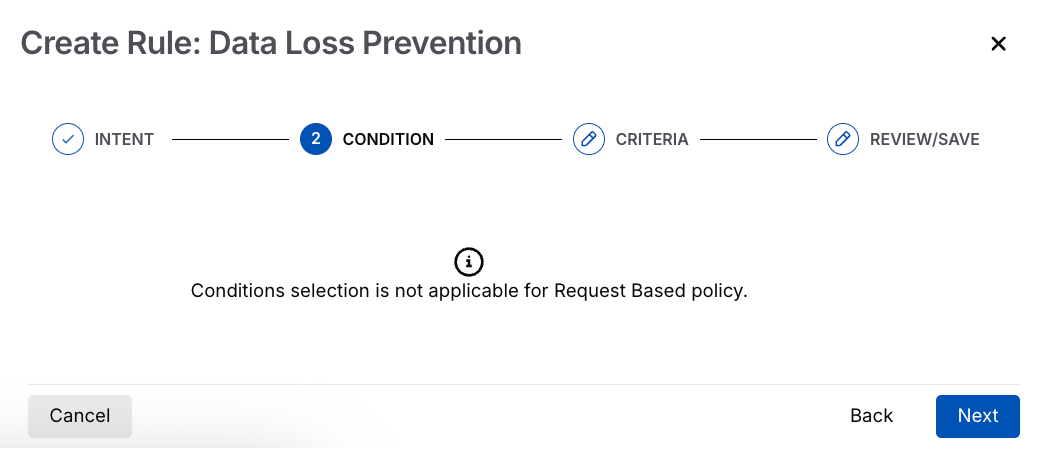
DLP Condition for Request-based
Step 2 — Set the criteria
To set the criteria, you must complete the following steps:
Note
The availability of the criteria (Source, Payload, and Target) below depends on the configurations and the rule type you have selected in the Define the intent above.
Source — The traffic conditions to which the rule applies (for example, IP Addresses → All external IPs). The following table describes the supported source types and their usage for creating a DLP rule:
Source Type
Description
IP Address
Limit traffic from specific internal or external IP addresses.
Region
Enforce limits by geographic region to address location-based traffic patterns.
Payload — The payload on which you want to apply the rule. You can create the rule based on the following:
Field
Description
Data Location
Defines where Traceable evaluates sensitive data within API traffic.
Request — Evaluates sensitive data only in API requests sent by the client to the server. Use this option when you want to monitor sensitive data submitted through request payloads, headers, query parameters, or forms.
Response — Evaluates sensitive data only in API responses returned by the server to the client. Use this option to monitor sensitive data exposed in API responses.
Request and Response — Evaluates sensitive data in both API requests and API responses. Use this option when you want complete visibility into sensitive data flowing in both directions.
Datasets
Evaluates classified business datasets configured in Traceable. Use this option to protect datasets, such as customer records, healthcare records, financial data, or employee information.
Datatypes
Evaluates detected sensitive data types identified by Traceable. Use this option to protect sensitive fields, such as email addresses, PAN numbers, phone numbers, API keys, authentication tokens, or credit card numbers.
Data sets/ Data Types —
If you enable the Custom location for data-type key-value pair matching toggle, configure the following fields to define the exact payload location Traceable should evaluate for sensitive data detection:
Field
Description
Attribute
Selects the request or response component to inspect, such as headers or body fields.
Key
Defines the matching condition for the selected attribute key.
Value
Specifies the exact key or field name that Traceable evaluates for sensitive data detection.
.png)
Request-Based Rule type Criteria step
Request Payload Criteria — The following table explains the different fields available:
Field
Description
API Interaction
Select whether the rule applies to a request or response.
Component
Select API components, for example, URL, headers, or body.
Operator
Define the comparison logic, for example, contains, equals.
Value
Specify the value to match.
Key
Select the attribute and operator, for example, authorization with Exact match.
Value
However, you can select a different one from the drop-down and specify the value accordingly. For more information, see Understand payload match.
Target — The target API endpoints you want Traceable to monitor in the rule. You can select one or more APIs or labels to which the rules should apply. The rule applies to all the underlying APIs when you select a label. The following table describes the targets available:
Target
Description
All Services
Apply the rule to all service(s).
Services
Apply the rule to one or more specific services. You can search or filter services based on your requirements.
Once you have set the above criteria, click Next.
Step 3 — Review and save
Review the configured rule before saving it. Click Save to create the DLP rule.
Actions on DLP rules
You can also perform the following actions on the policies by clicking the Ellipse ( ) icon corresponding to a rule:
Edit — Add or remove attributes as needed.
View — View a rule to identify the attributes Traceable uses to exclude specific attacks or threat actors.
Clone — Clone a rule to create a copy of an existing rule with the same values as the existing rule.
Reset — Reset the rule to default.
Change Logs — Log the changes of each activity occurring within the DLP rule created.