Applications provide you with a consolidated way to view APIs and related assets in Traceable. Applications represent the logical groupings of assets based on your organizational requirements, such as payments, orders, or users.
Before Applications appear on the Traceable platform, you must first define them through the Application Settings page. Once configured, applications are displayed on the Applications page, where you can view your security posture, ownership, and open issues by business impact.
What will you learn in this topic?
By the end of this topic, you will understand:
The purpose of the applications page.
The way to interpret the information displayed for each application.
The way of using the application view to assess security posture and prioritize issues.
The way to leverage application-level data once you configure applications and they are visible on the page.
Why use applications
Applications provide you with organization-level visibility instead of asset-level visibility. Using applications, you can:
View APIs and MCP tools grouped by the functionality you specified during configuration.
Understand security posture and issues at an application level.
Prioritize remediation based on the application severity and impact.
Reduce noise around assets by focusing on the ones relevant to a specific application.
The Applications page is useful in environments with multiple teams, shared APIs, and tools.
Understand the Applications view
The Discovery → Applications page lists all applications you have configured in the platform, whether created manually or via a rule. For more information on this configuration, see Application Settings.
Note
You must have the Settings level permission under Module Level Access → Discovery to configure an application and rule. Additionally, your role must be scoped to All Environments. For more information, see Teams and roles - RBAC.
Each row in the table represents a single application and provides the following information:
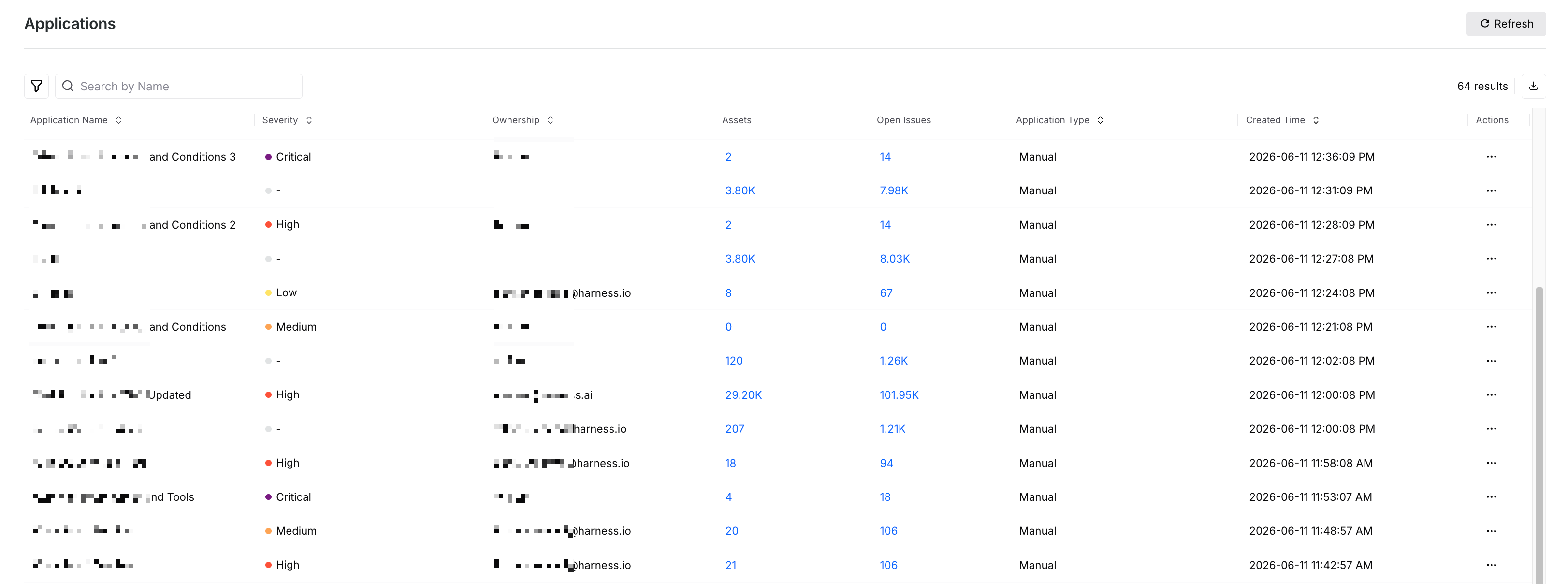
Discovery Applications
Column | Description |
|---|---|
Application Name | The name of the application you defined manually or Traceable, identified by the rule. |
Severity | The impact of the application in your organization. |
Ownership | The owner assigned to the application manually or identified by the rule. |
Assets | The number of APIs and MCP tools associated with the application. You can click the displayed value and you are redirected to the All Assets tab under Inventory with the data filtered according to the application. |
Open Issues | The number of active security issues associated with the application and its assets. You can click the displayed value and you are redirected to the Issues page with the data filtered according to the application. |
Application Type | The way of application creation, manual or via a rule. |
Created Time | The time at which you created the application manually or Traceable created it via the rule. |
Actions | The option to edit or delete the application. |
You can also search and apply filters to narrow the view and focus on specific applications based on your requirements.
Leverage the Applications view
Suppose your organization configures an application named Payment Gateway using the Application Settings page. The application groups all payment-related APIs and assigns a Critical severity.
Once configured, the application is visible on the Applications page. From this page, your team can:
Immediately identify Payment Gateway as a Critical application.
View the number of APIs associated with the payment functionality.
Identify any open issues affecting the payment APIs.
Prioritize investigation and remediation for this application over lower-severity applications.
By selecting the assets and/or open issues, you can drill down into the associated security posture without filtering each endpoint individually. This workflow ensures that your security analysis and remediation efforts are aligned with your business-critical requirements.