Application Settings (Configuration) in Traceable allow you to define how APIs and related assets are grouped into applications. By configuring applications, you can create an aligned structure that meets your requirements, helping you organize assets, assess your security posture, and prioritize issues across your environment.
You can configure applications by manually selecting assets or by defining rules that automatically associate assets as they are discovered. These configurations are applied consistently across the platform wherever Applications are used.
What will you learn in this topic?
By the end of this topic, you will understand:
The types of methods available for configuring applications.
The steps to configure applications to logically group APIs or related assets.
The steps to manage and update application configurations over time.
The way to use these configured applications to enable application-level visibility across the Traceable platform.
Application configuration methods
Traceable supports two methods for configuring applications. You can use either method independently or combine them to configure up to 1000 applications. The following section highlights these methods:
Manual creation
You can create applications manually when you know which assets they contain. When creating applications manually, you can explicitly select the assets to include, such as APIs and MCP tools. This configuration gives you precise control and is ideal for stable or well-defined applications where asset membership changes are not frequent.
Rule creation
You can create rule-based configurations that automatically associate assets with an application based on matching criteria. This approach ensures that your applications remain accurate as new APIs are discovered. Currently, Traceable enables you to define rules using the API context path attribute. After creation, any asset that meets the defined rules is automatically included in the application.
Configure applications and rules
Traceable enables you to configure applications and rules according to your requirements. To configure an application and/or rule, complete the following steps:
Note
You must have the Settings level permission under Module Level Access → Discovery to configure an application and rule. Additionally, your role must be scoped to All Environments. For more information, see Teams and roles - RBAC.
Step 1 — Navigating the page
Before you configure an application or rule, complete the following steps:
Log in to your Traceable platform and click the Settings (
 ) icon in the page’s bottom left corner.
Under Discovery, click Applications.
Based on your requirements, complete Step 2 below.
Step 2 — Configuration
In the Application Configuration page, navigate to the tab for the application or rule you wish to configure. The following tabs outline the configuration steps:
In the Manual Creation tab, click Add New Application.
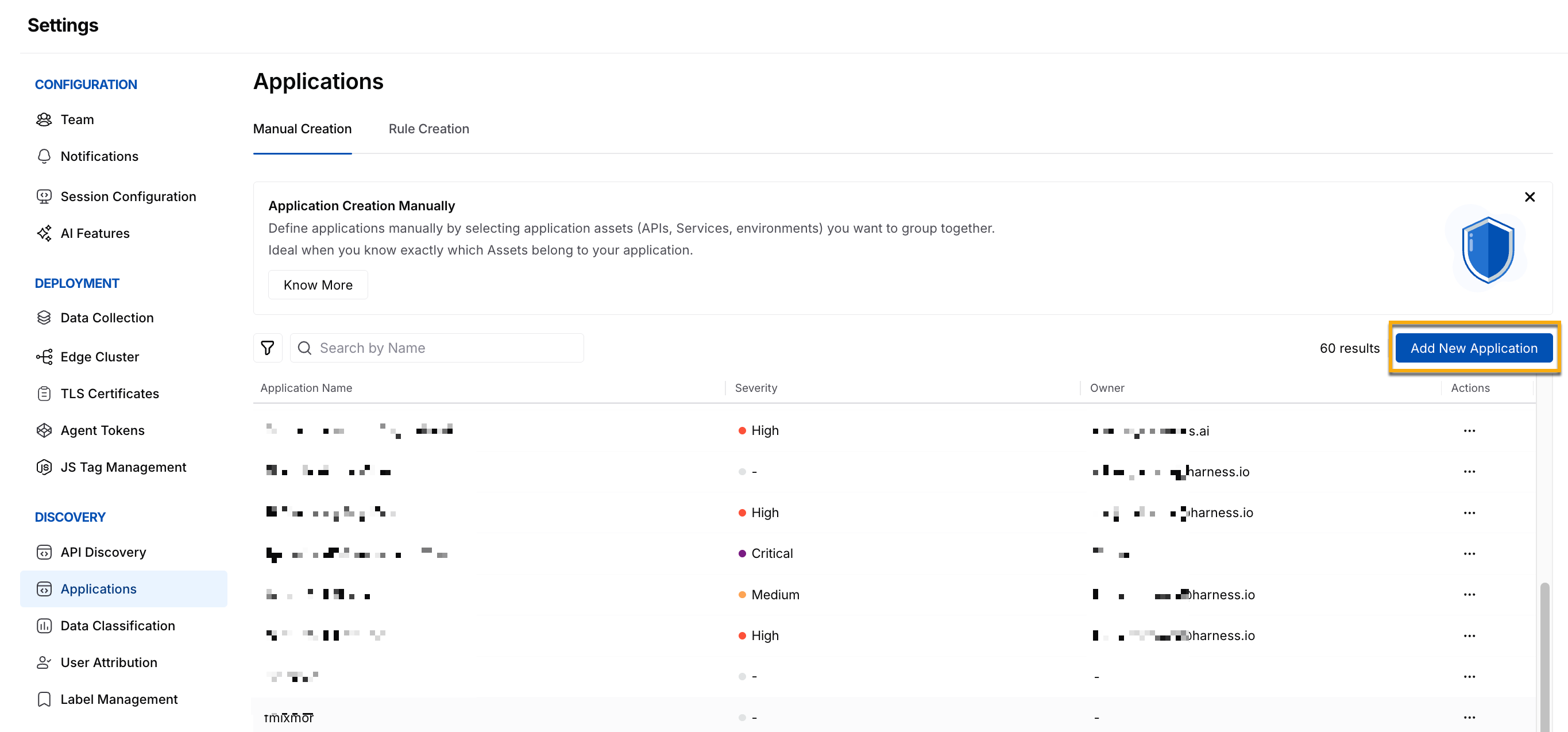
Manual Application Configuration
In the Details section of the Add New Application slide-out panel, complete the following steps:
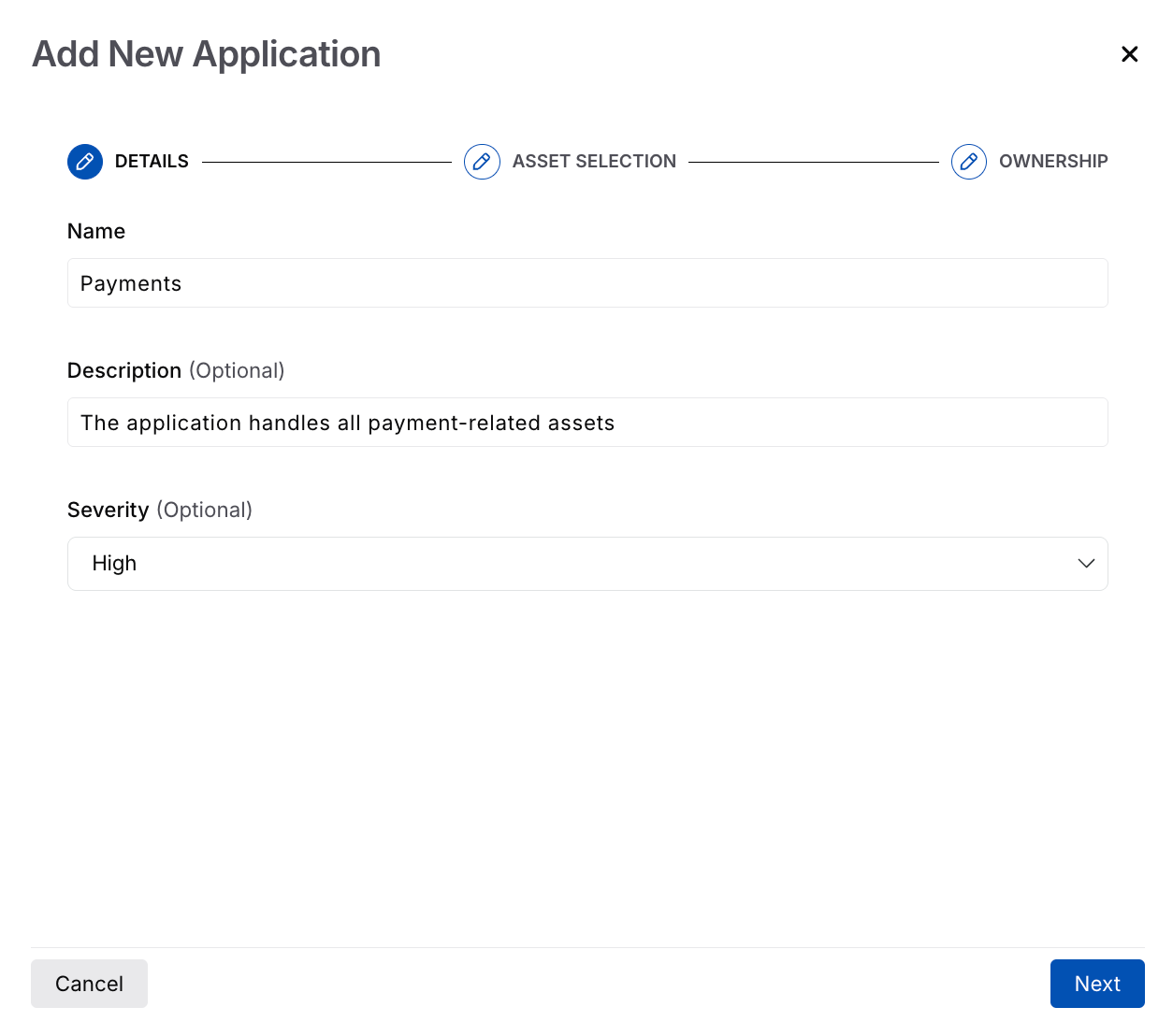
Manual Application Details
Specify a Name for the application, for example, Payments. Traceable uses this name in the Applications page.
(Optional) Specify a Description for the application, for example, The application handles all payment-related assets.
(Optional) Specify the Severity of the application based on the assets you wish to assign to it, for example, High.
Click Next.
In the Asset Selection section, complete the following steps:
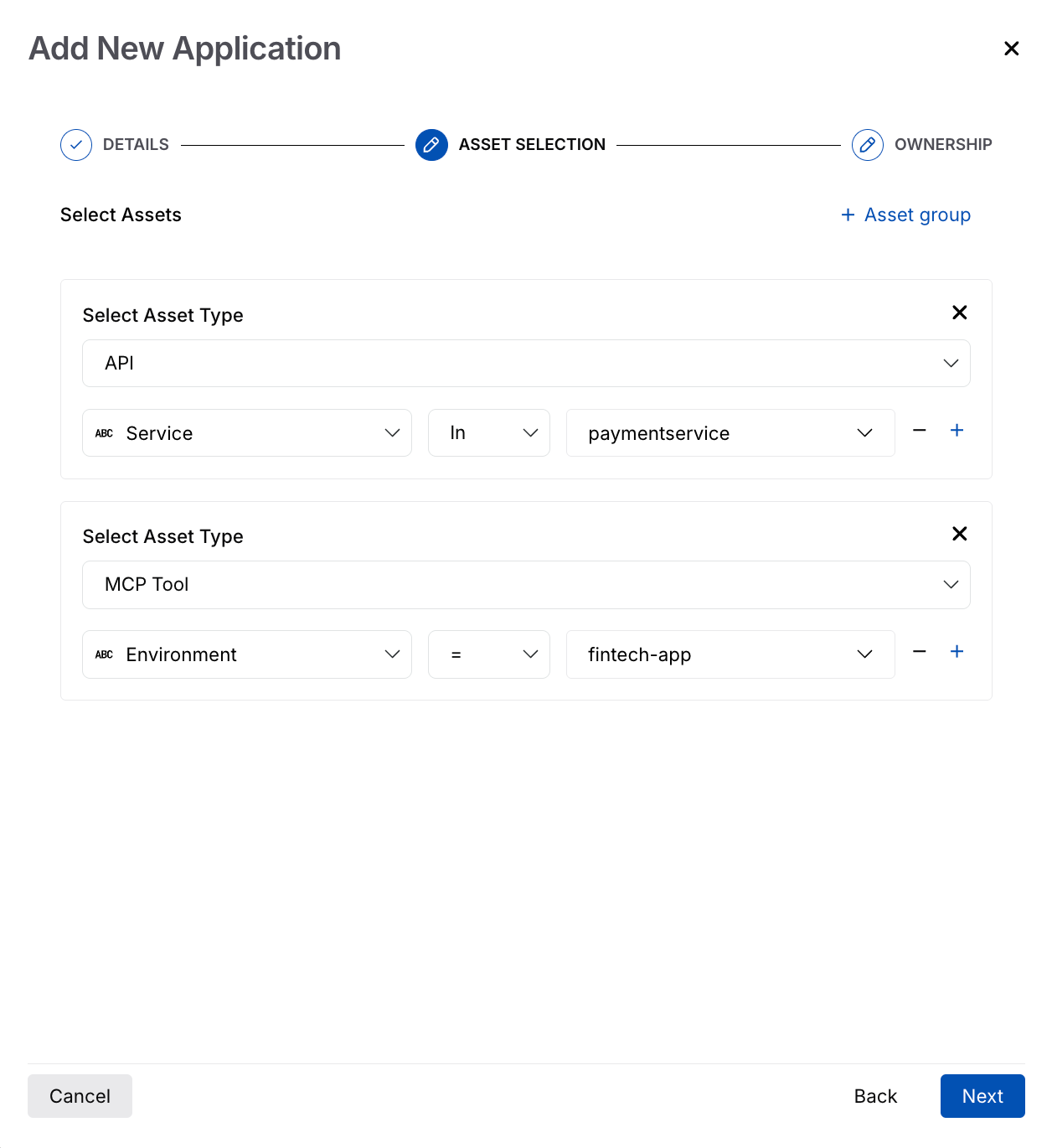
Manual Application Asset Selection
Note
Traceable adds one asset group by default, however, you can add any number of asset groups according to your requirements. To do this, click + Asset Group in the page’s top right corner.
Select the Asset Type according to your requirements, for example, API.
(Optional) Click + Add condition to filter the asset type selected above according to various parameters, for example, Service (Attribute) In (Operator) paymentservice (Value).
Click Next.
In the Ownership section, complete the following steps:
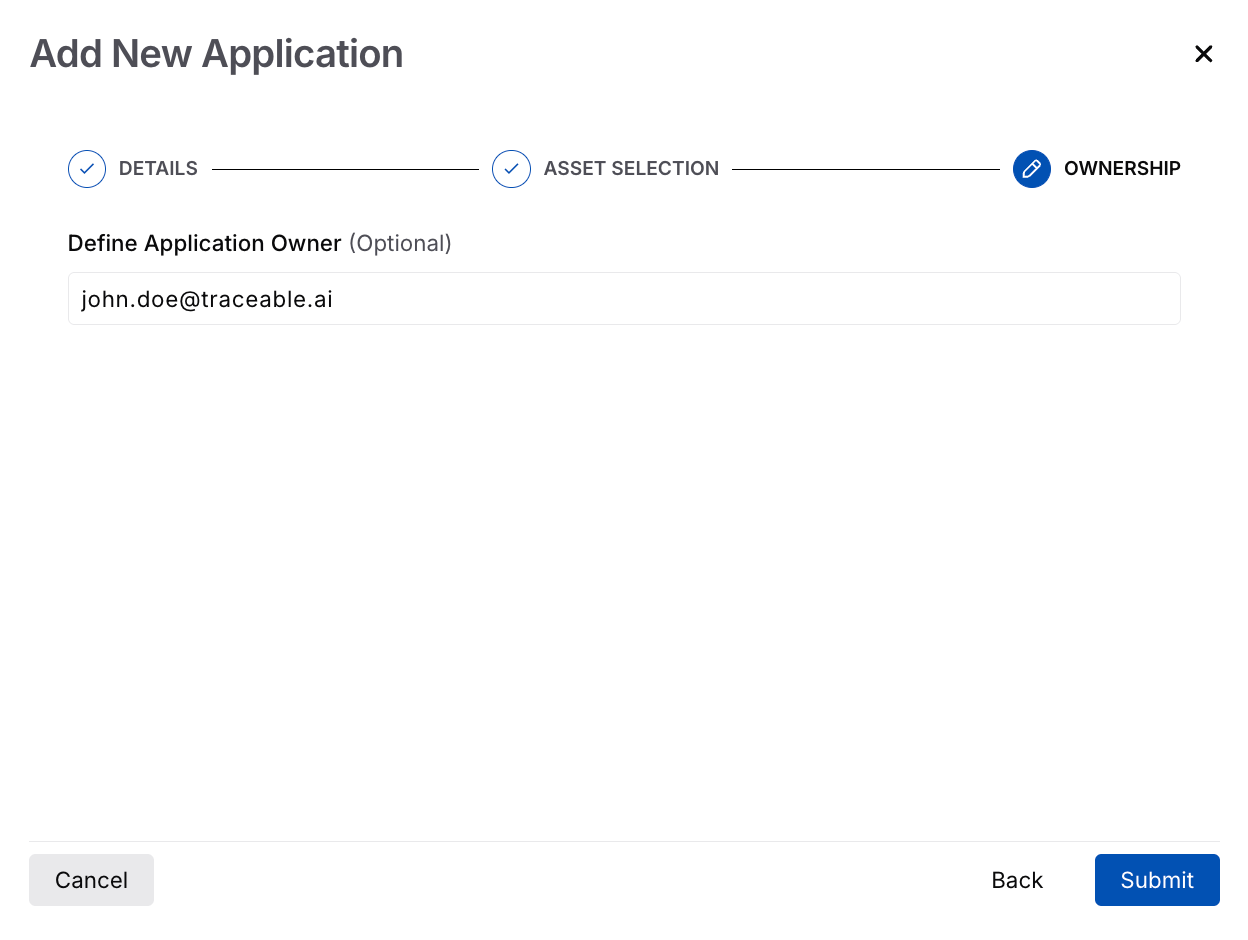
Manual Application Ownership
(Optional) Specify the Application Owner you wish to assign, for example, john.doe@traceable.ai.
Click Submit.
In the Manual Creation tab, click Add New Rule.
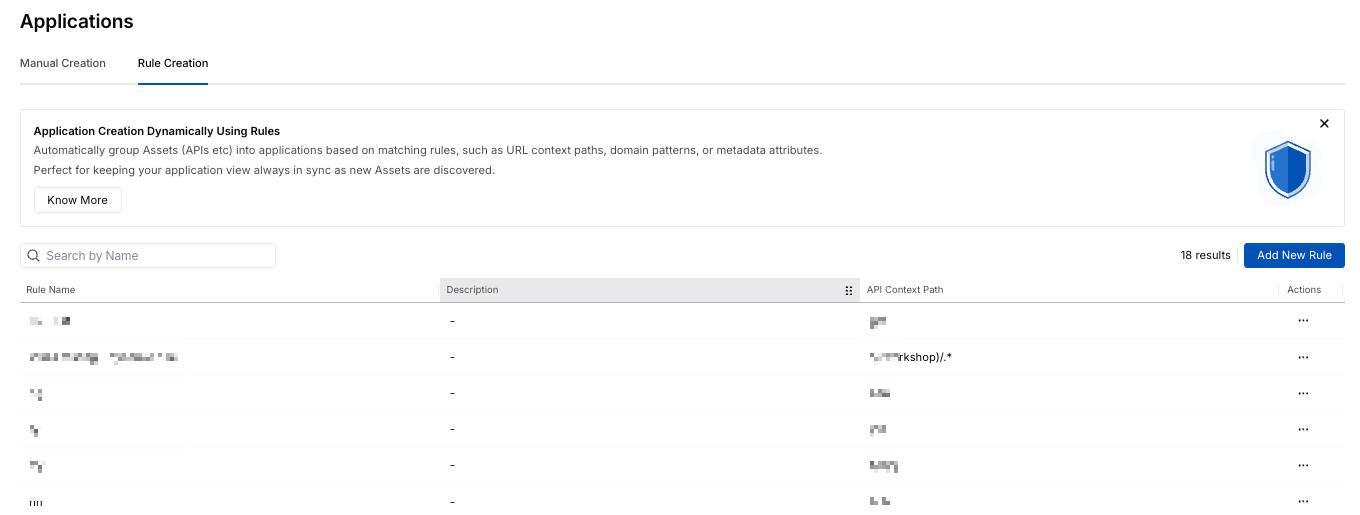
Rule-based Application Creation
In the Add New Application Rule slide-out panel, complete the following steps:
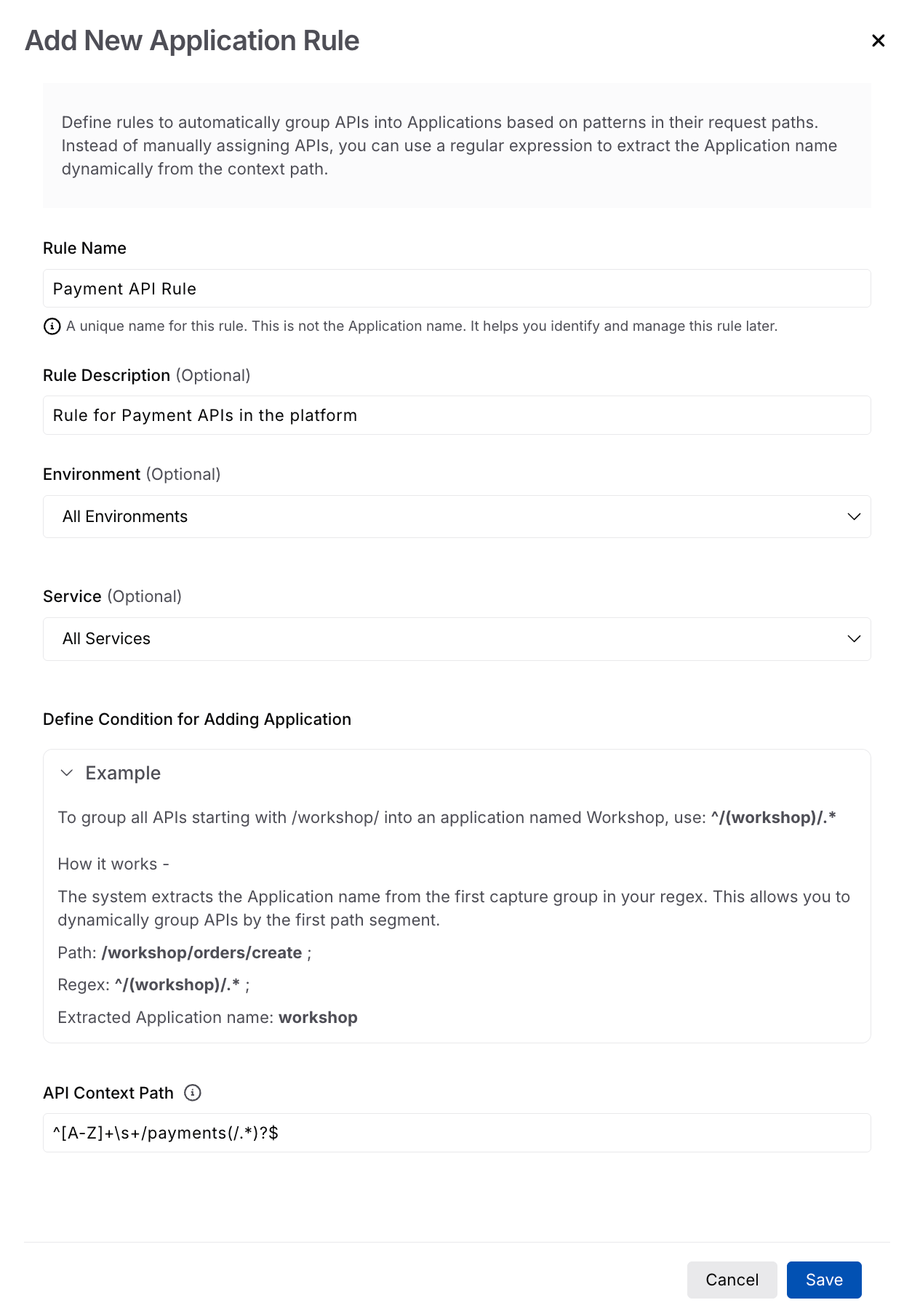
Application Settings Rule Creation
Specify the Rule Name, for example, Payment API Rule.
(Optional) Specify a Rule Description, for example, Rule for Payment-related APIs in the platform.
(Optional) Select the Environment to which Traceable should assign the application, for example, fintech-app.
(Optional) Select the Services to which Traceable should assign the application, for example, user-service.
Define the API Context Path that Traceable should use for adding the application, for example, /payments, ensures that Traceable groups all payment-related APIs under a single application.
Note
Traceable uses this API context path for extracting the application name. For example, if you specify ^[A-Z]+\s+/workshop(/.*)?$ as the context path, Traceable extracts Workshop from the regex and uses it as the application name.
Click Save.
After creation, Traceable displays the application and/or rules in their respective tabs.
Leverage applications
After you create an application or rule, Traceable uses it across the platform to group assets. This helps you gain application-level visibility across the platform. To explore the configured applications and analyze associated assets, issues, and security posture, see Applications.
Further, on the Inventory and Issues page, you can Filter and/or Group By Application Name to drill down into applications and perform the necessary actions, according to your requirements.
Manage applications
Traceable enables you to manage existing applications and/or rules along with their configurations. You can:
View all configured applications and rules.
View and edit the application or rule details, severity, ownership, and rule conditions.
Delete applications, assets, or modify rules as applications evolve.
Note
An application, once deleted, cannot be recovered.
Any changes you make to the Application Settings tabs are reflected across the Traceable platform within some time.