The AI Assets page under Discovery → Inventory provides a centralized view of all AI-related components discovered in your application ecosystem. It helps you understand how AI assets, such as AI APIs, MCP tools, prompts, resources, and servers, are being used, what sensitive data flows through them, and which assets may require your attention.
What will you learn in this topic?
By the end of this topic, you will understand:
The widgets displayed on the AI Assets page.
The insights available on the AI Assets page.
How to identify sensitive data exposure across AI assets.
How to use the page to improve AI asset visibility and security posture.
Understand the AI Assets view
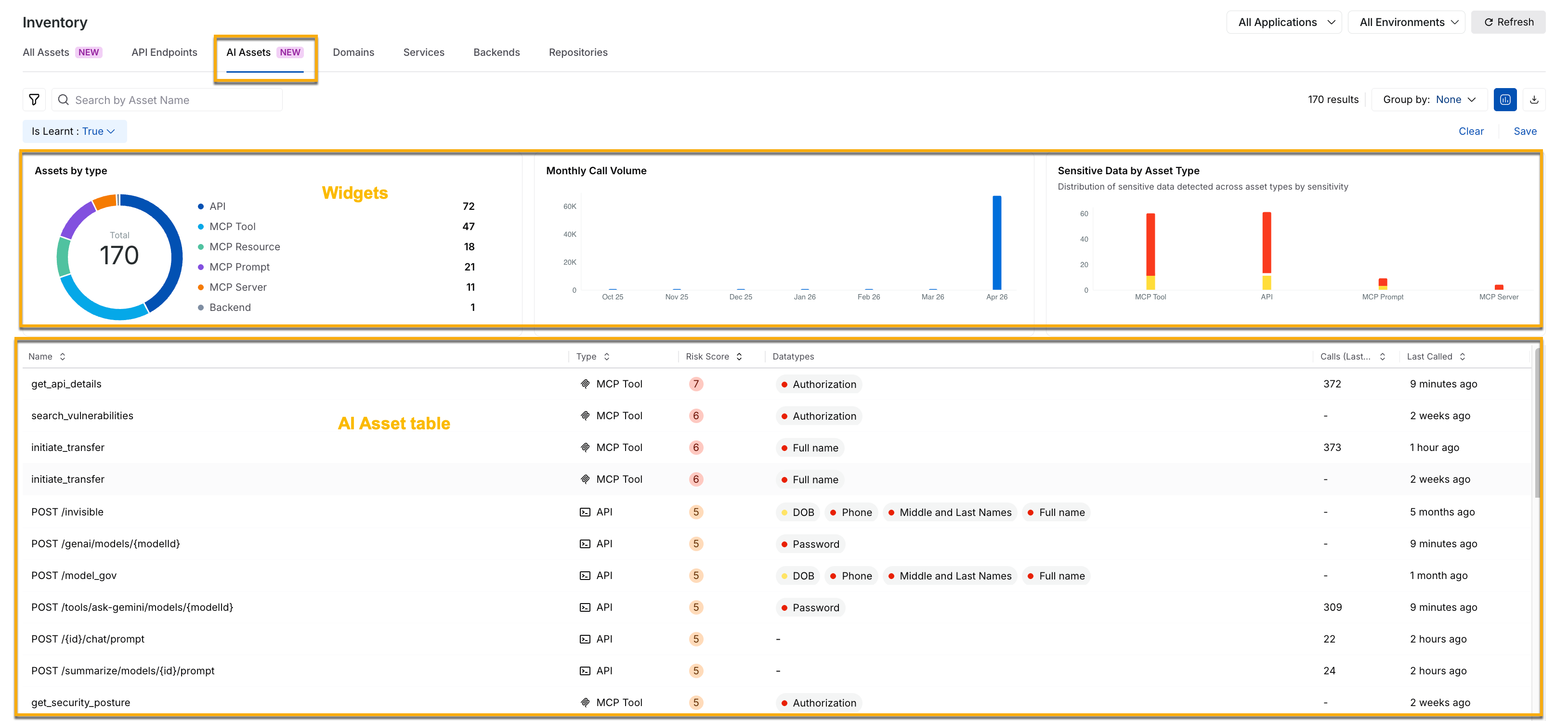
The AI Assets page displays widgets at the top to summarize the distribution, usage, and data exposure of AI assets across your environment(s). These widgets help you assess inventory coverage and identify areas that require investigation and remediation.
AI Assets
Traceable displays the following widgets on the page:
Assets by type — This widget provides a breakdown of discovered AI assets using a donut chart. You can use this widget to understand how AI functionality is distributed across your environment(s) and identify which assets are used more often.
Monthly Call Volume — This widget displays the number of calls made to the AI assets over time. You can use this widget to identify usage spikes, detect unusual activity patterns, and understand AI adoption. A sudden increase in call volume may indicate misuse, configuration changes, or potential asset abuse.
Sensitive Data by Asset Type — This widget displays where sensitive data flows across different AI asset types. You can use this widget to identify which asset types handle sensitive information and prioritize them for investigation and protection.
Below the widgets on the page, Traceable displays the AI asset table, which provides detailed information about each discovered AI asset, such as asset name, type, risk score, call volume, and last called timestamp. You can click a specific asset to view detailed insights, such as metadata, schema details, and activity context. For more information, see AI Asset Details.
You can use this information to understand which AI assets are actively used, identify assets handling sensitive data, detect high-risk assets, and prioritize remediation actions.
Leverage the AI Assets view
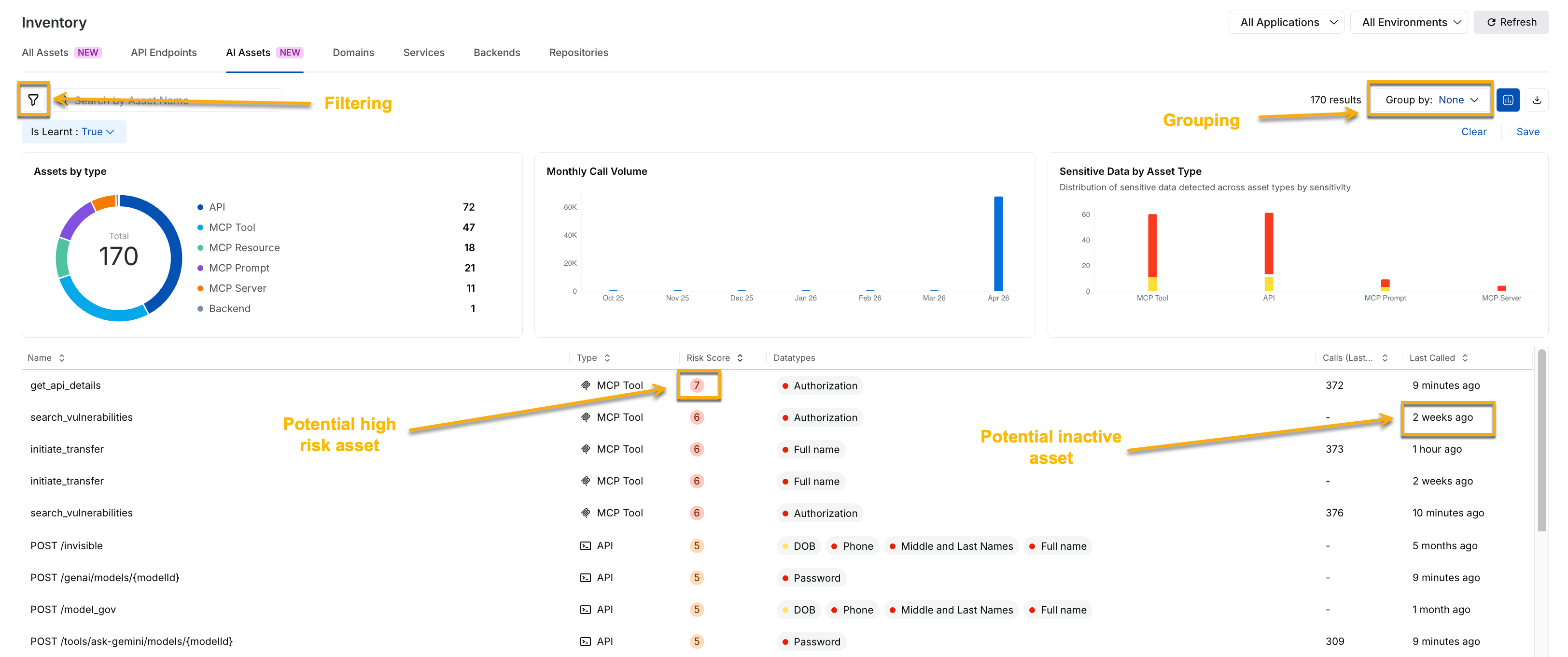
Once you understand the AI assets view, you can use the available filters, grouping options, and metrics to effectively investigate AI activity.
Leveraging the AI Assets View
Filter strategically
Use filters to narrow the dataset and focus on the relevant AI components. For example, you can filter by:
Asset Type to isolate MCP tools or prompts.
Datatypes to identify sensitive data exposure issues.
Risk Score to identify high-priority assets.
Last Called time to detect inactive assets.
Filtering assets based on the components above helps you reduce investigation time and improve visibility into security-relevant assets.
Group for insights
You can group assets to identify patterns across your environment. For example, grouping by:
Labels or Ownership to identify the stakeholders responsible for the asset in your application.
Application Name to identify applications with the most sensitive data flow.
Grouping assets helps you detect risky or sensitive
Take necessary actions
After identifying the relevant assets, you can use the insights from this page to perform the following actions:
Improve security and reduce risk — Identify AI assets with high-risk scores or sensitive data exposure, and prioritize them for review.
Improve posture — Identify inactive or rarely used AI assets that may increase operational expenses.
Strengthen governance — Track sensitive data flow across prompts, tools, and APIs, and prioritize policy enforcement to support compliance.
Example — Investigate sensitive data exposure in an AI asset
Suppose the Sensitive Data by Asset Type widget shows that MCP tools are handling authorization-related data. You can filter the table by clicking the Filter ( ) icon in the page’s top right corner and selecting:
Asset Type as MCP Tool
Datatype as Authorization
This helps you identify which MCP tools are processing authorization-related information. With this insight, you can:
Verify that the appropriate assets have access to the data.
Review the authentication mechanisms.
Assess whether sensitive data tokens are exposed.
Prioritize remediation, if required.
This workflow improves control over your AI assets and reduces the risk of unintended data exposure across your application(s).